HorizontalFloatingToolbar
一个用于显示浮动操作栏的 Jetpack Compose HorizontalFloatingToolbar 组件。
For the complete documentation index, see llms.txt. Use this file to discover all available pages.
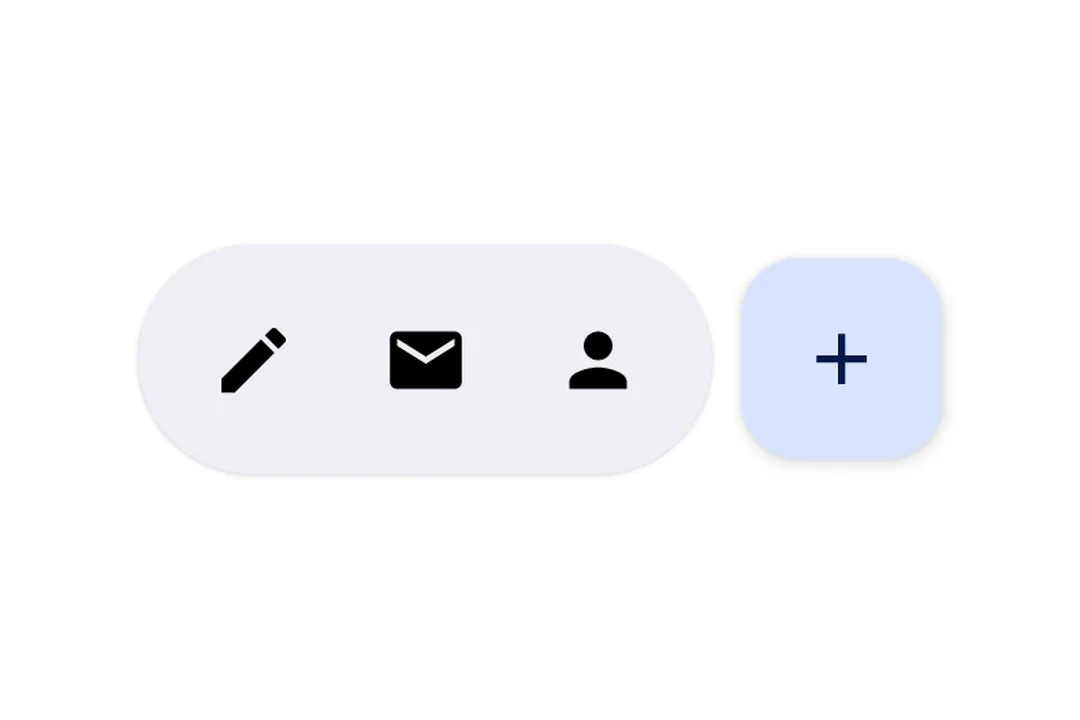
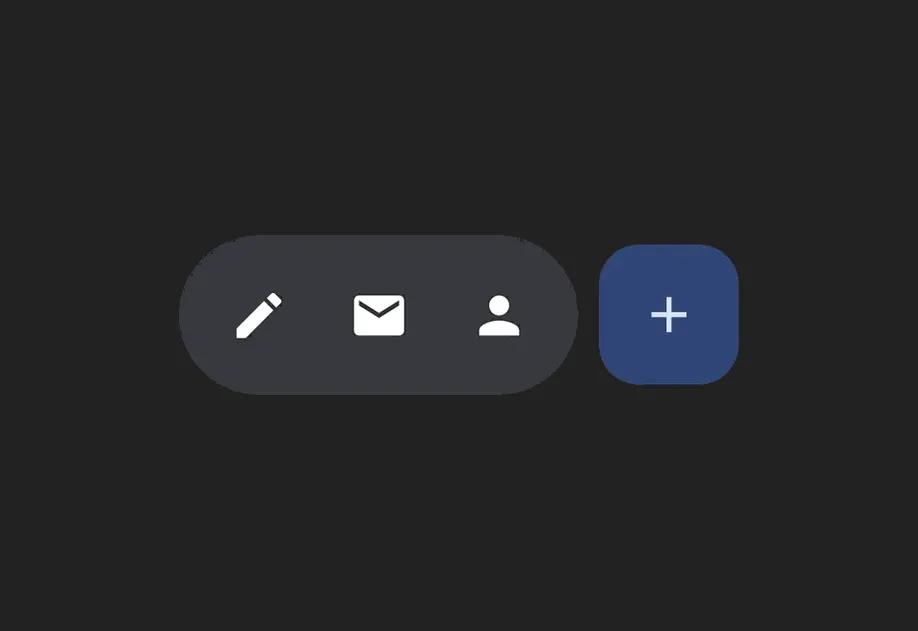
Expo UI HorizontalFloatingToolbar 封装了官方的 Jetpack Compose HorizontalFloatingToolbar,并显示一个悬浮在内容上方的水平工具栏,包含操作按钮。
**注意:**如果你只需要一个悬浮按钮,请改用
FloatingActionButton。

安装
- npx expo install @expo/uiIf you are installing this in an existing React Native app, make sure to install expo in your project.
用法
可随滚动内容悬浮的工具栏
将工具栏放在带有 floatingToolbarExitAlwaysScrollBehavior 的 Box 内,以获得随滚动隐藏/显示的行为。使用 align('bottomCenter') 将工具栏定位在屏幕底部。整个布局都保留在 Compose 层中——不需要 React Native 的绝对定位。
import { Box, HorizontalFloatingToolbar, Host, Icon, IconButton, LazyColumn, ListItem, } from '@expo/ui/jetpack-compose'; import { align, fillMaxSize, fillMaxWidth, offset } from '@expo/ui/jetpack-compose/modifiers'; export default function FloatingToolbarExample() { return ( <Host style={{ flex: 1 }}> <Box modifiers={[fillMaxSize()]} floatingToolbarExitAlwaysScrollBehavior="bottom"> <LazyColumn modifiers={[fillMaxSize()]}>{/* ...列表项... */}</LazyColumn> <HorizontalFloatingToolbar variant="vibrant" modifiers={[align('bottomCenter'), offset(0, -16)]}> <IconButton onClick={() => console.log('Edit pressed')}> <Icon source={require('./assets/edit.xml')} /> </IconButton> <HorizontalFloatingToolbar.FloatingActionButton onClick={() => console.log('Add pressed')}> <Icon source={require('./assets/add.xml')} /> </HorizontalFloatingToolbar.FloatingActionButton> </HorizontalFloatingToolbar> </Box> </Host> ); }
带有 FloatingActionButton 的工具栏
将 IconButton 作为工具栏项的直接子元素使用,并将 HorizontalFloatingToolbar.FloatingActionButton 用作主操作按钮。
import { Host, HorizontalFloatingToolbar, IconButton, Icon } from '@expo/ui/jetpack-compose'; export default function ToolbarWithFABExample() { return ( <Host matchContents> <HorizontalFloatingToolbar> <IconButton onClick={() => console.log('Edit pressed')}> <Icon source={require('./assets/edit.xml')} contentDescription="编辑" /> </IconButton> <IconButton onClick={() => console.log('Share pressed')}> <Icon source={require('./assets/share.xml')} contentDescription="分享" /> </IconButton> <HorizontalFloatingToolbar.FloatingActionButton onPress={() => console.log('Add pressed')}> <Icon source={require('./assets/add.xml')} contentDescription="添加" /> </HorizontalFloatingToolbar.FloatingActionButton> </HorizontalFloatingToolbar> </Host> ); }
API
import { HorizontalFloatingToolbar } from '@expo/ui/jetpack-compose';
Components
Type: React.Element<HorizontalFloatingToolbarProps>
Renders a HorizontalFloatingToolbar component.
A horizontal toolbar that floats above content, typically used for action buttons.
HorizontalFloatingToolbarColorsPer-slot color overrides. Any field set here replaces the corresponding color from the variant default; unset fields fall back to the variant.
Type: React.Element<HorizontalFloatingToolbarFloatingActionButtonProps>
FloatingActionButton component for HorizontalFloatingToolbar. This component marks its children to be rendered in the FAB slot.
Types
| Property | Type | Description |
|---|---|---|
| fabContainerColor(optional) | ColorValue | Color of the floating action button container (background). |
| fabContentColor(optional) | ColorValue | Color of the floating action button content (icon). |
| toolbarContainerColor(optional) | ColorValue | Color of the toolbar container (background). |
| toolbarContentColor(optional) | ColorValue | Color of the toolbar content (icons/text). |