使用 Expo UI 构建 SwiftUI 应用

编辑页面

了解如何使用 Expo UI 将 SwiftUI 集成到你的 Expo 应用中。

iOS
macOS
tvOS

For the complete documentation index, see llms.txt. Use this file to discover all available pages.

可在 SDK 54 及更高版本 中使用。

Expo UI 将 SwiftUI 带到了 React Native。你可以使用现代的 SwiftUI 基础组件来构建应用。

本指南介绍了使用 Expo UI 将 SwiftUI 集成到 Expo 应用中的基础知识。

Expo UI iOS 液态玻璃教程
Expo UI iOS 液态玻璃教程

了解如何使用新的 Expo UI 在你的 React Native 应用中构建真正的 SwiftUI 视图。

特性

  • SwiftUI 基础组件:Expo UI 不是另一个 UI 库。它将 SwiftUI 基础组件带到了 Expo。
  • 一一映射:Expo UI 中的组件与 SwiftUI 视图一一对应。你可以轻松浏览 SwiftUI 生态中的可用视图,例如 Explore SwiftUILibraried app,并找到对应的 Expo UI 组件。
  • 全应用支持:Expo UI 设计用于整个应用。你可以完全使用 Expo UI 编写应用,同时保持灵活性。集成是在组件级别进行的。你也可以混合使用 React Native 组件Expo UI 组件DOM 组件,或使用 react-native-skia 构建自定义 2D 组件。

安装

你需要在 Expo 项目中安装 @expo/ui 包。运行以下命令进行安装:

Terminal
npx expo install @expo/ui

使用

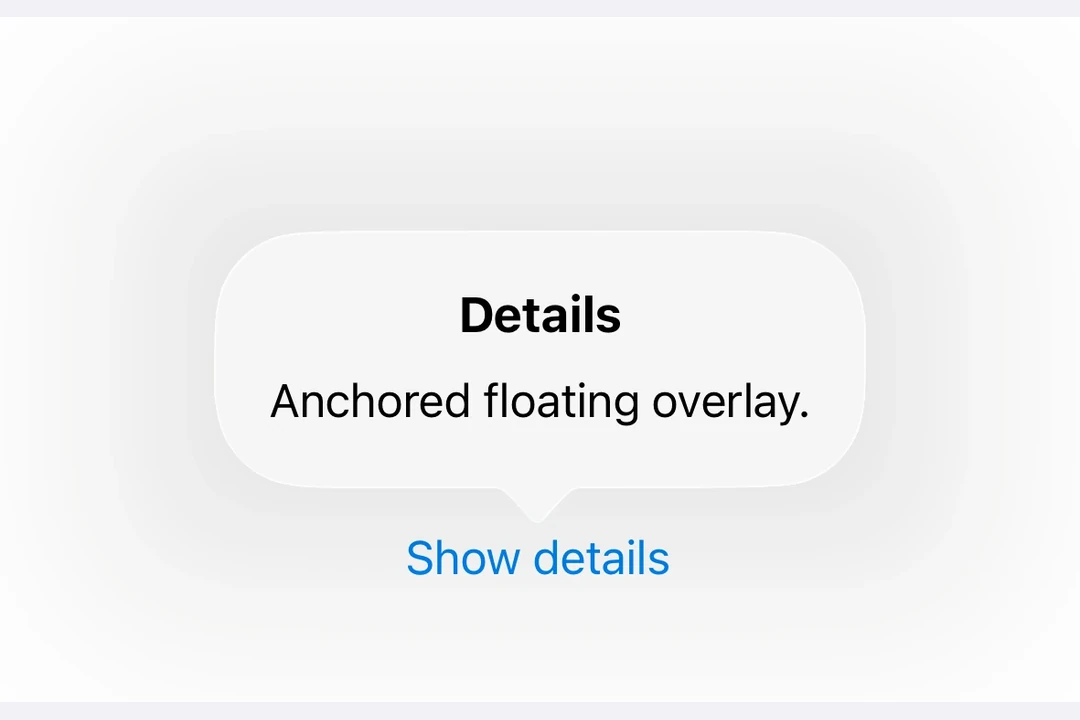
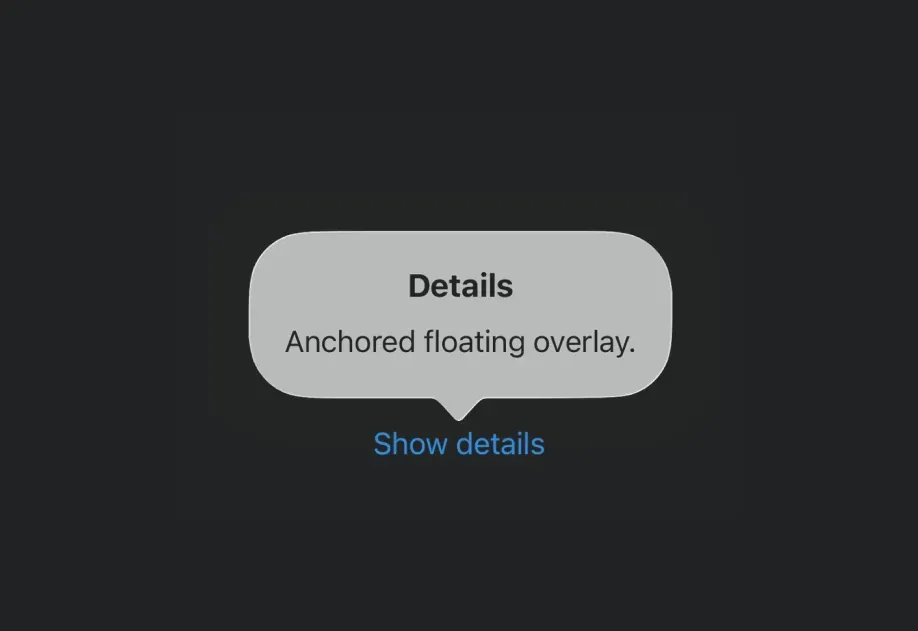
Expo UI 提供了多个可用的 SwiftUI 组件。你可以通过从 @expo/ui/swift-ui 导入它们来在应用中使用。不过,要跨越从 React Native(UIKit)到 SwiftUI 的边界,你需要使用 Host 组件。Host 是 SwiftUI 视图的容器。你可以把它看作 DOM 中的 <svg>,或者 react-native-skia 中的 <Canvas>。其底层使用 UIHostingController 在 UIKit 中渲染 SwiftUI 视图。

使用 Host 的基本用法

SwiftUI loading view
import { CircularProgress, Host } from '@expo/ui/swift-ui'; import { View, Text } from 'react-native'; export default function LoadingView() { return ( <View style={{ flex: 1, justifyContent: 'center', alignItems: 'center' }}> <Host matchContents> <CircularProgress /> </Host> <Text>正在加载...</Text> </View> ); }

使用 HStackVStack

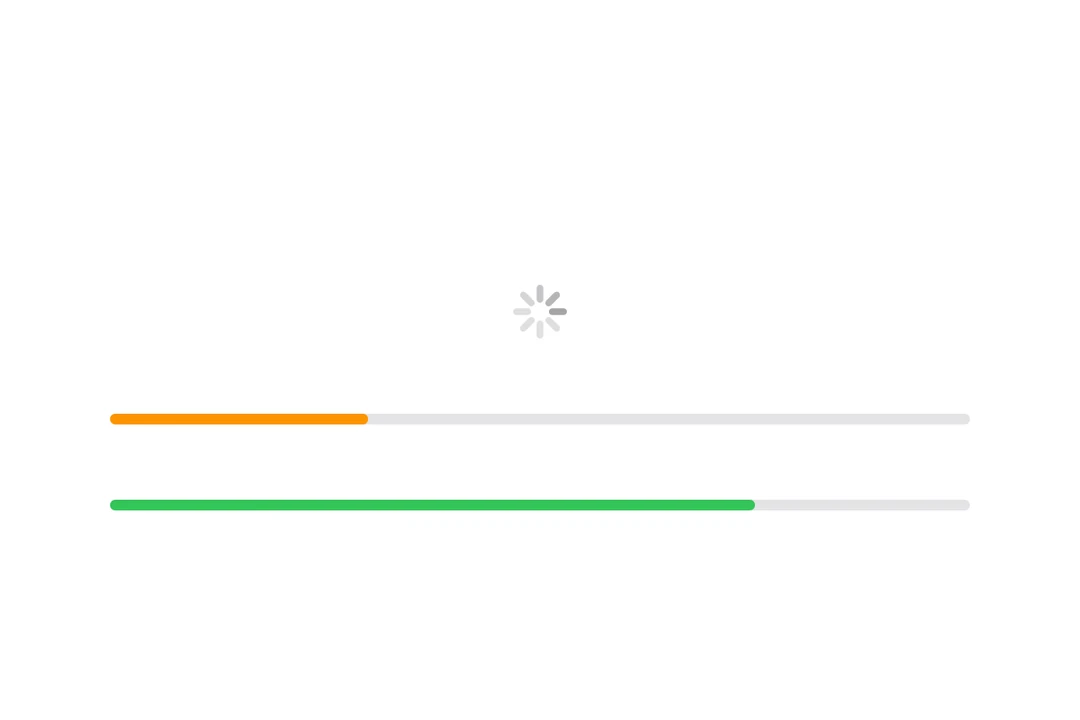
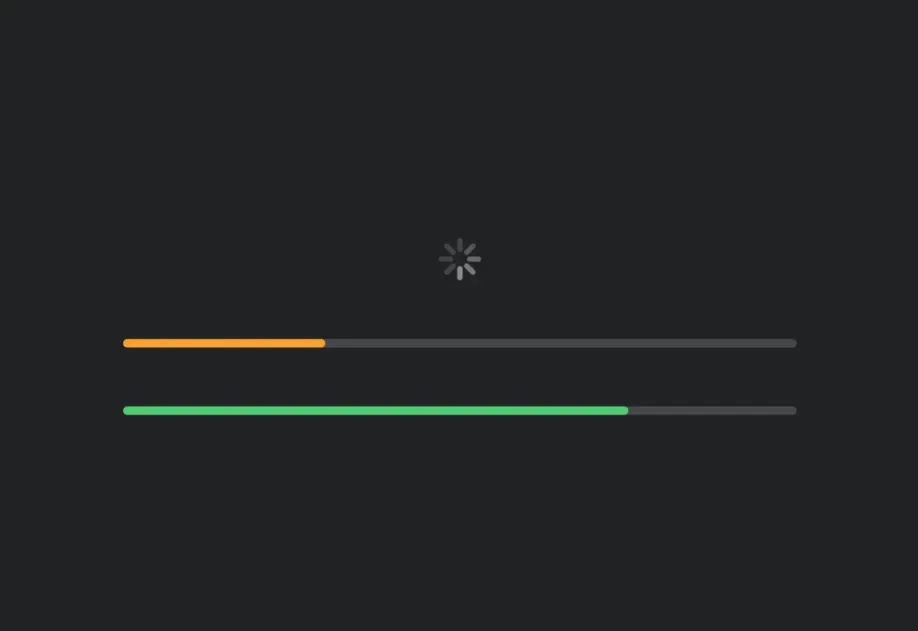
你也可以使用 HStackVStack 组件在 SwiftUI 中构建整个布局。

SwiftUI loading with HStack and VStack
import { CircularProgress, Host, HStack, LinearProgress, VStack } from '@expo/ui/swift-ui'; export default function LoadingView() { return ( <Host style={{ flex: 1, margin: 32 }}> <VStack spacing={32}> <HStack spacing={32}> <CircularProgress /> <CircularProgress color="orange" /> </HStack> <LinearProgress progress={0.5} /> <LinearProgress color="orange" progress={0.7} /> </VStack> </Host> ); }

修饰符

SwiftUI 修饰符 是一种强大的方式,可用于自定义 SwiftUI 组件的外观和行为。Expo UI 也为 SwiftUI 组件提供了修饰符。你可以从 @expo/ui/swift-ui/modifiers 导入修饰符,并将它们作为数组传递给 modifiers 属性。以下示例中,将 expo-mesh-gradientglassEffect 修饰符组合起来创建液态玻璃文本。

注意glassEffect 修饰符需要 Xcode 26+ 和 iOS 26+。

SwiftUI modifiers
import { Host, Text } from '@expo/ui/swift-ui'; import { glassEffect, padding } from '@expo/ui/swift-ui/modifiers'; import { MeshGradientView } from 'expo-mesh-gradient'; import { View } from 'react-native'; export default function Page() { return ( <View style={{ flex: 1 }}> <MeshGradientView style={{ flex: 1 }} columns={3} rows={3} colors={['red', 'purple', 'indigo', 'orange', 'white', 'blue', 'yellow', 'green', 'cyan']} points={[ [0.0, 0.0], [0.5, 0.0], [1.0, 0.0], [0.0, 0.5], [0.5, 0.5], [1.0, 0.5], [0.0, 1.0], [0.5, 1.0], [1.0, 1.0], ]} /> <Host style={{ position: 'absolute', top: 0, right: 0, left: 0, bottom: 0 }}> <Text size={32} modifiers={[ padding({ all: 16, }), glassEffect({ glass: { variant: 'clear', }, }), ]}> 玻璃效果文本 </Text> </Host> </View> ); }

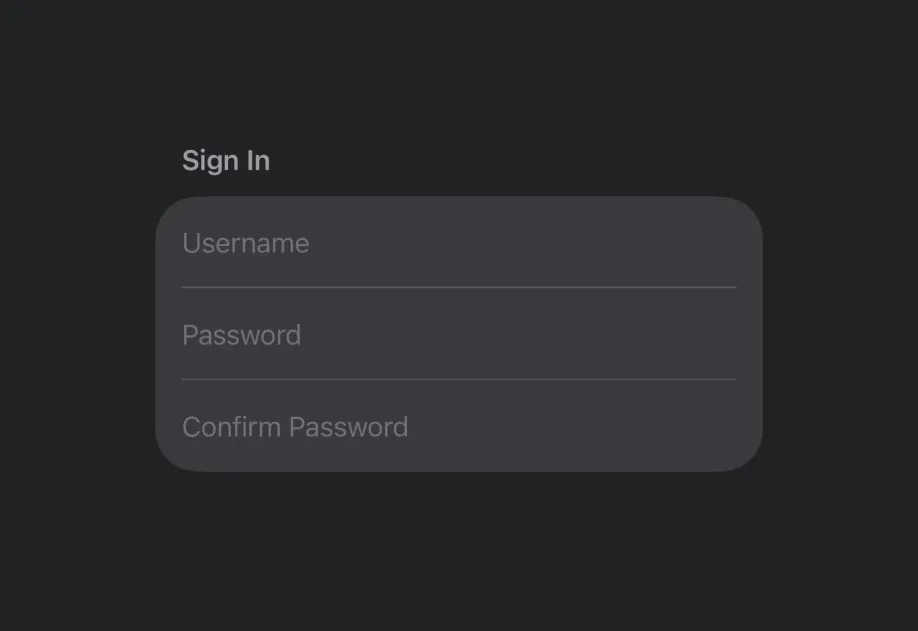
iOS 设置应用示例

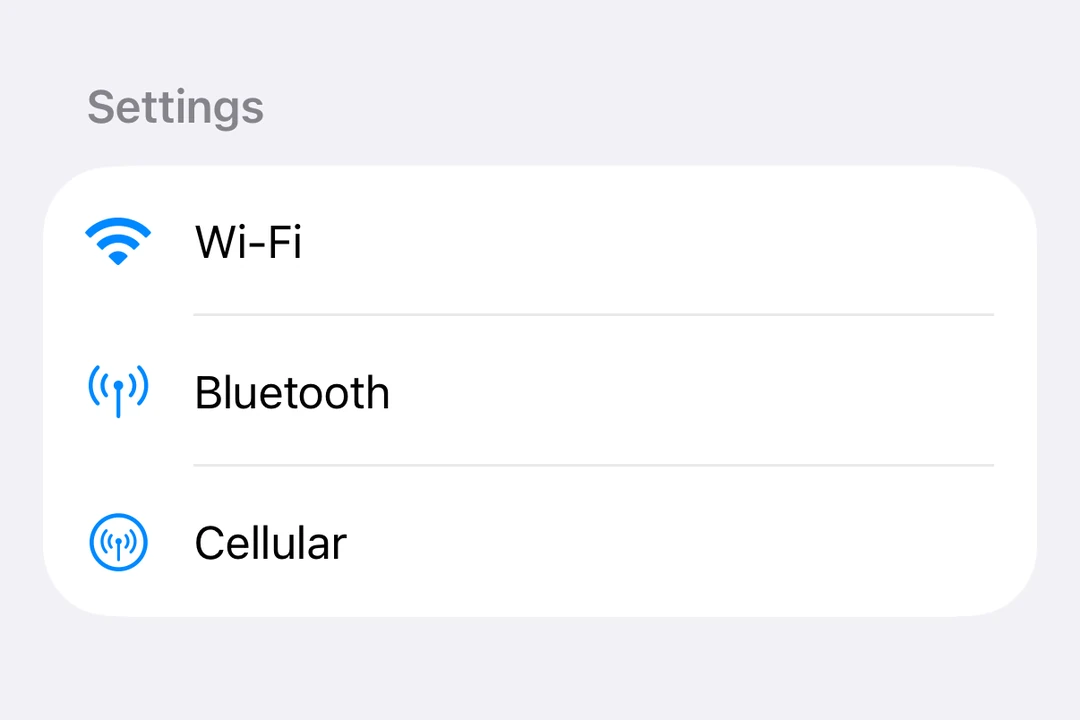
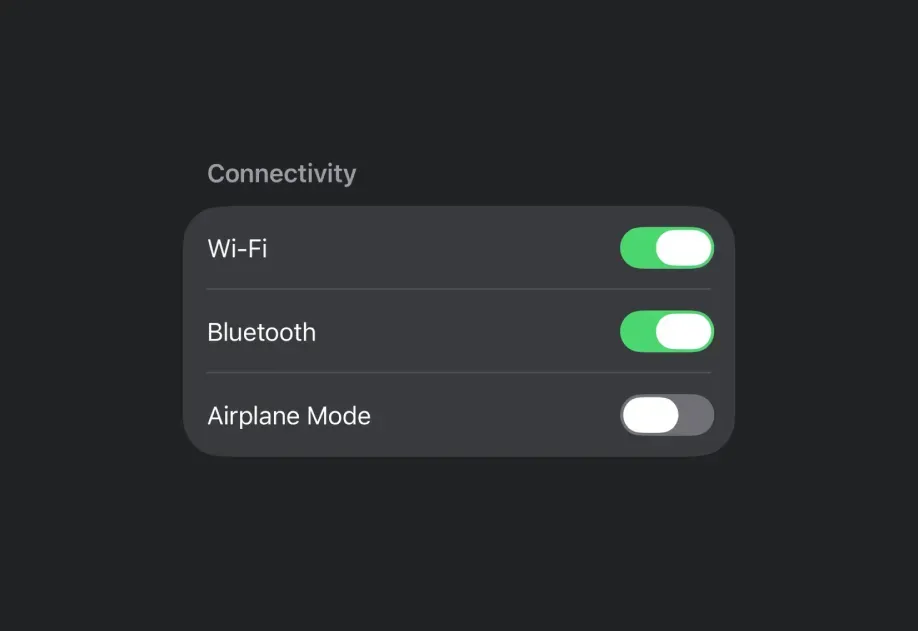
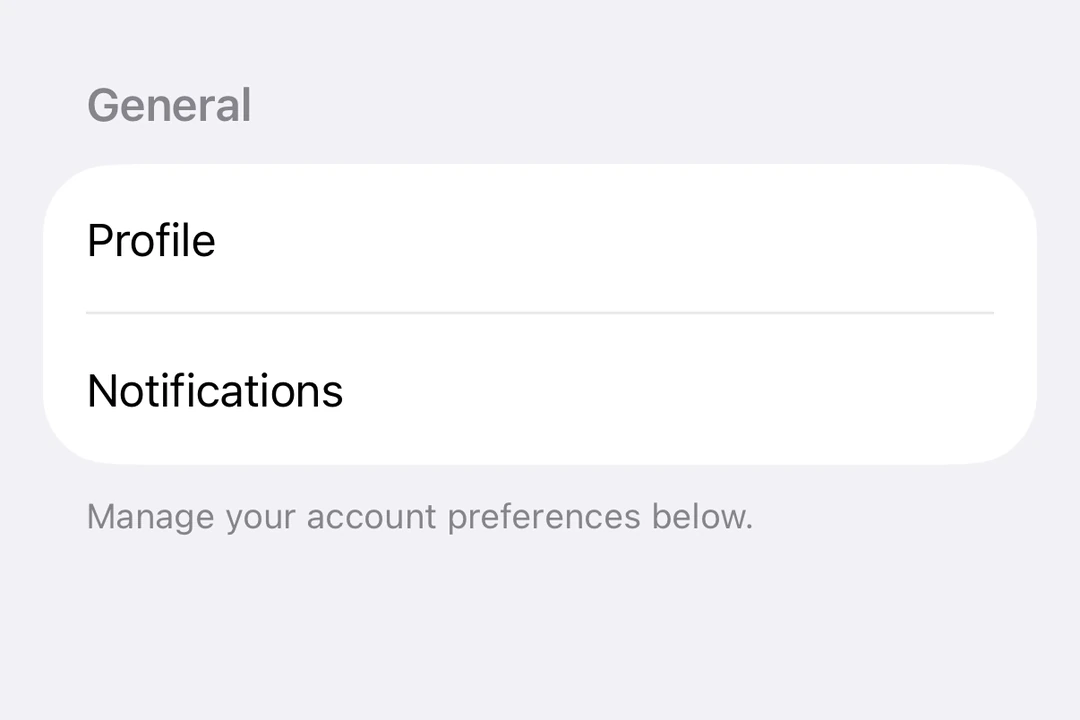
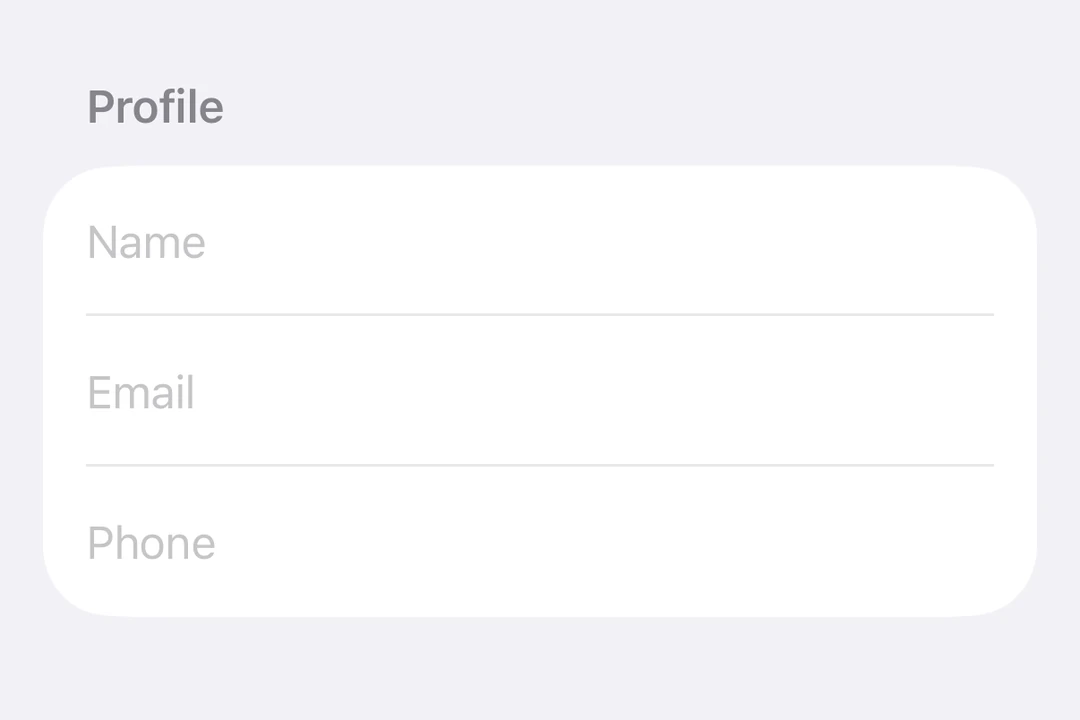
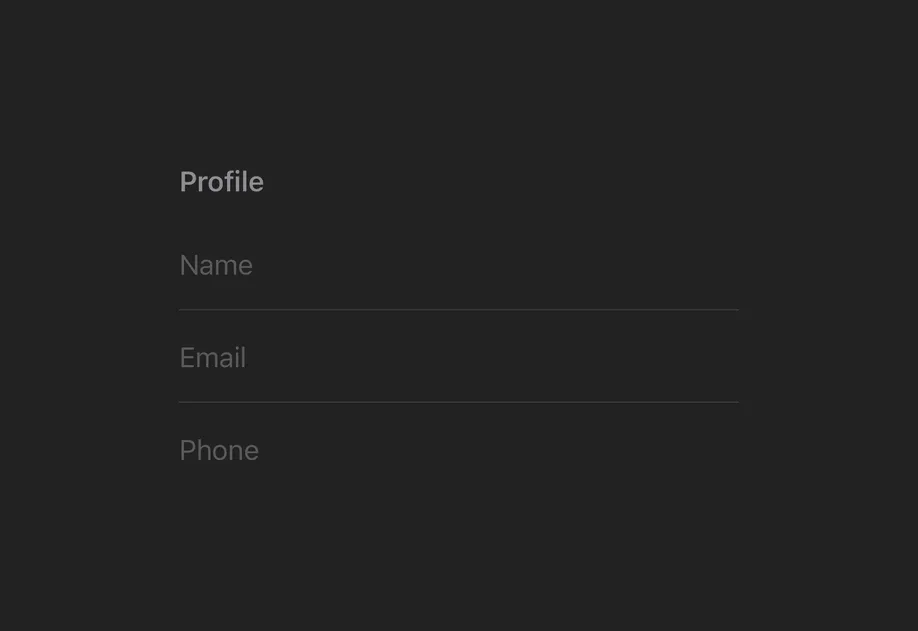
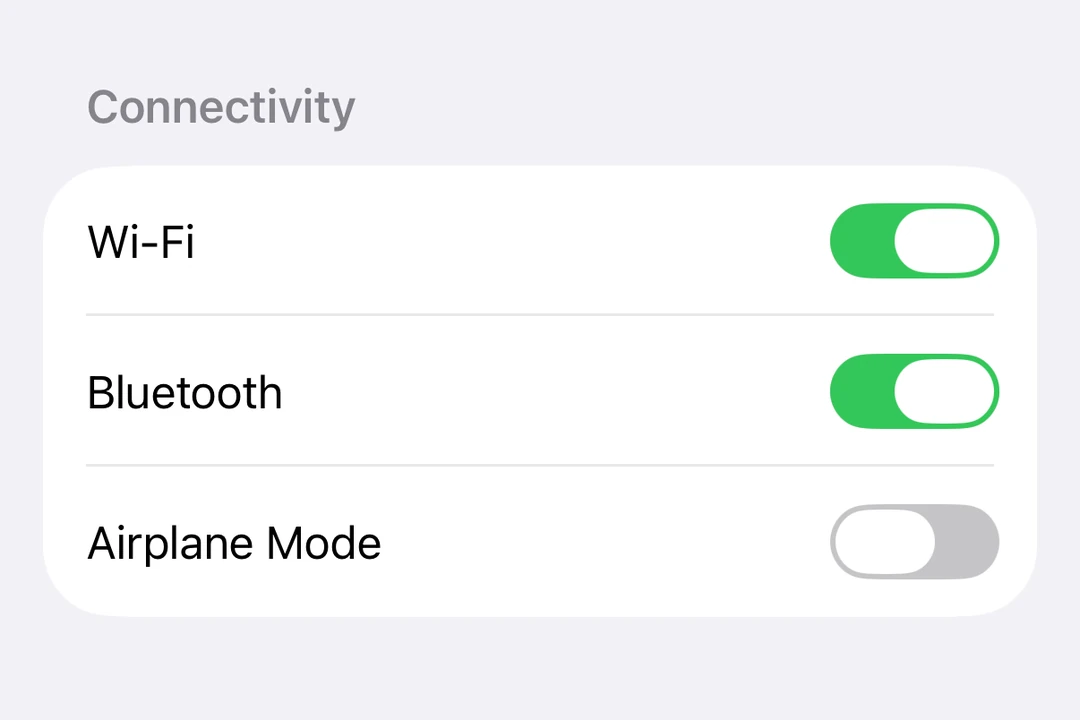
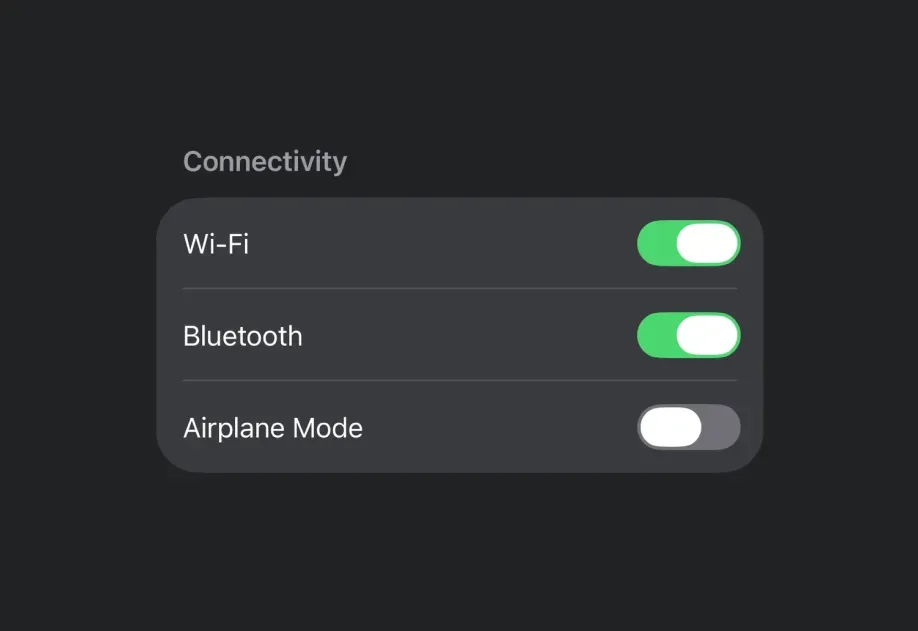
结合 Expo UI 组件和修饰符,你可以构建出类似 iOS 设置应用的界面。

SwiftUI Form example to build iOS Settings app
import { Button, Form, Host, HStack, Image, Section, Spacer, Toggle, Text, } from '@expo/ui/swift-ui'; import { background, buttonStyle, foregroundStyle, clipShape, frame } from '@expo/ui/swift-ui/modifiers'; import { Link } from 'expo-router'; import { useState } from 'react'; export default function SettingsView() { const [isAirplaneMode, setIsAirplaneMode] = useState(true); return ( <Host style={{ flex: 1 }}> <Form> <Section> <HStack spacing={8}> <Image systemName="airplane" color="white" size={18} modifiers={[ frame({ width: 28, height: 28 }), background('#ffa500'), clipShape('roundedRectangle'), ]} /> <Text>飞行模式</Text> <Spacer /> <Toggle isOn={isAirplaneMode} onIsOnChange={setIsAirplaneMode} /> </HStack> <Link href="/wifi" asChild> {/* 使用 buttonStyle('plain') 可防止默认的蓝色按钮样式 */} <Button modifiers={[buttonStyle('plain')]}> <HStack spacing={8}> <Image systemName="wifi" color="white" size={18} modifiers={[ frame({ width: 28, height: 28 }), background('#007aff'), clipShape('roundedRectangle'), ]} /> {/* 当 Text 被包裹在 Link 中时,需要显式指定颜色 */} <Text modifiers={[foregroundStyle({type: 'color', color: 'black'})]}>Wi-Fi</Text> <Spacer /> <Image systemName="chevron.right" size={14} color="secondary" /> </HStack> </Button> </Link> </Section> </Form> </Host> ); }

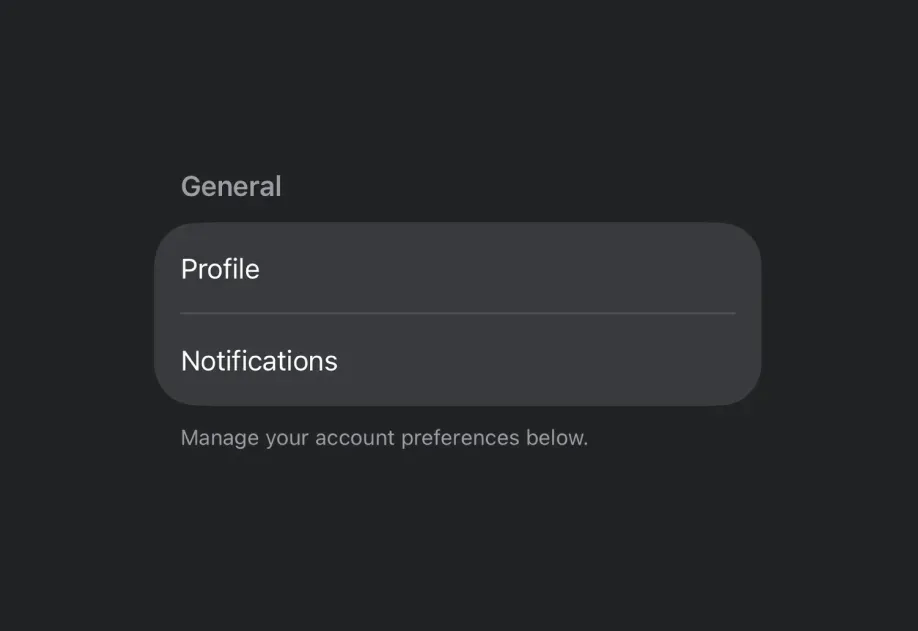
次级文本样式

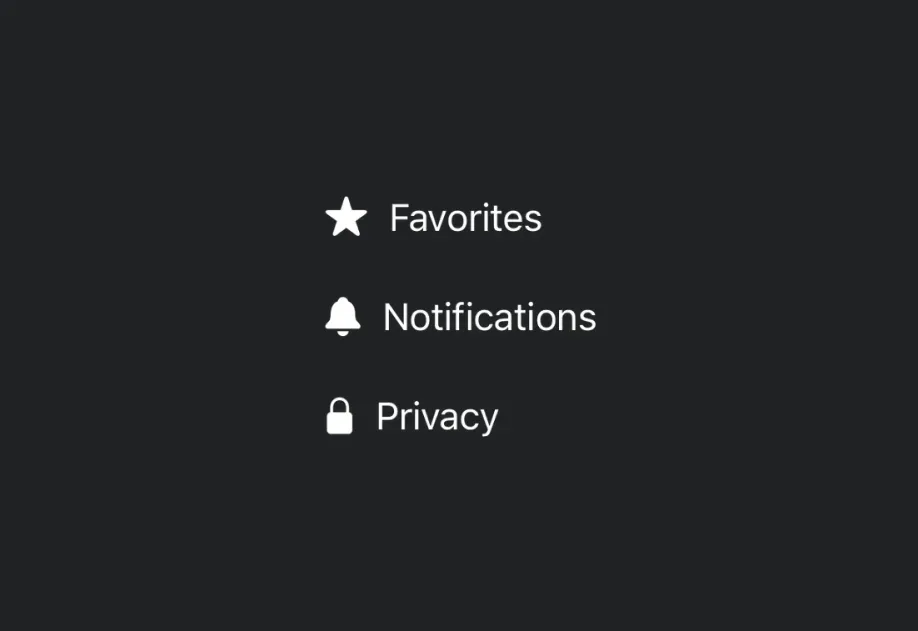
使用 foregroundStyle 应用一种层级样式,这会让文本看起来更浅、更柔和。

Secondary text styling
import { Button, Form, Host, HStack, Image, List, Section, Spacer, Text } from '@expo/ui/swift-ui'; import { buttonStyle, font, foregroundStyle, padding } from '@expo/ui/swift-ui/modifiers'; export default function SecondaryTextExample() { return ( <Host style={{ flex: 1 }}> <Form> <Section> <List> <Button onPress={() => console.log('Navigate')} modifiers={[buttonStyle('plain')]}> <HStack> <Text>夜览</Text> <Spacer /> <Text modifiers={[ foregroundStyle({type: 'hierarchical', style: 'secondary'}), padding({ trailing: 8 }), ]}> 22:00 至 07:00 </Text> <Image systemName="chevron.right" size={14} color="#C7C7CC" /> </HStack> </Button> </List> <List> <Text modifiers={[foregroundStyle({type: 'hierarchical', style: 'secondary'}), font({ size: 14 })]}> 可节省最多 280.7 MB。这将永久删除“最近删除”相册中保留的所有照片和视频。 </Text> </List> </Section> </Form> </Host> ); }

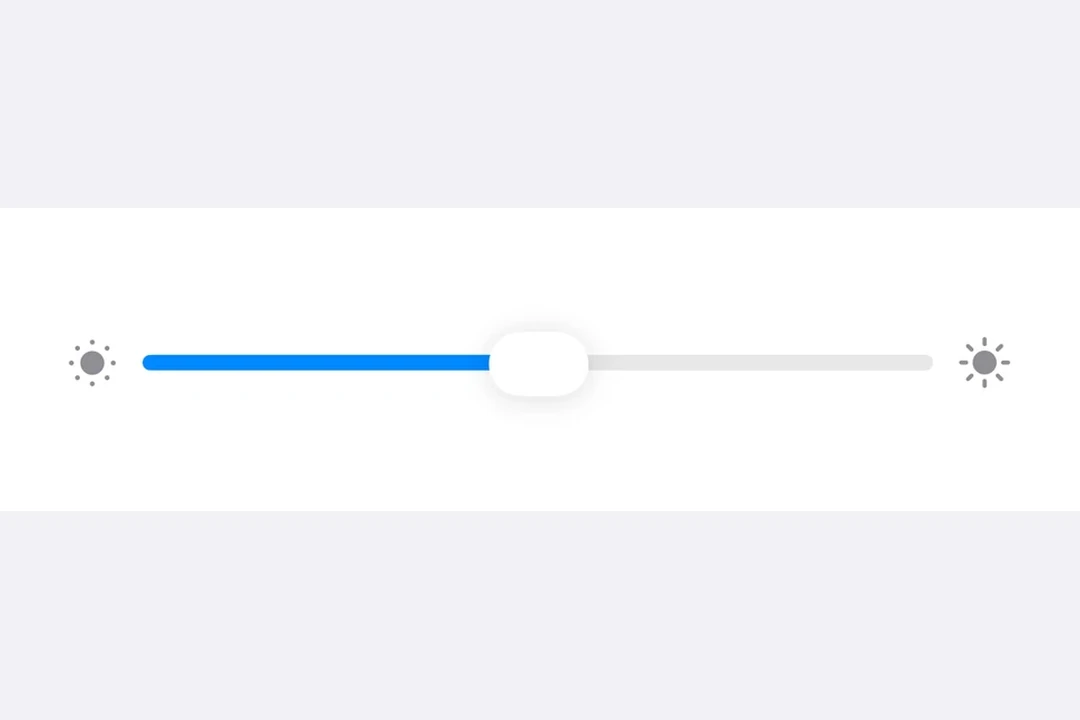
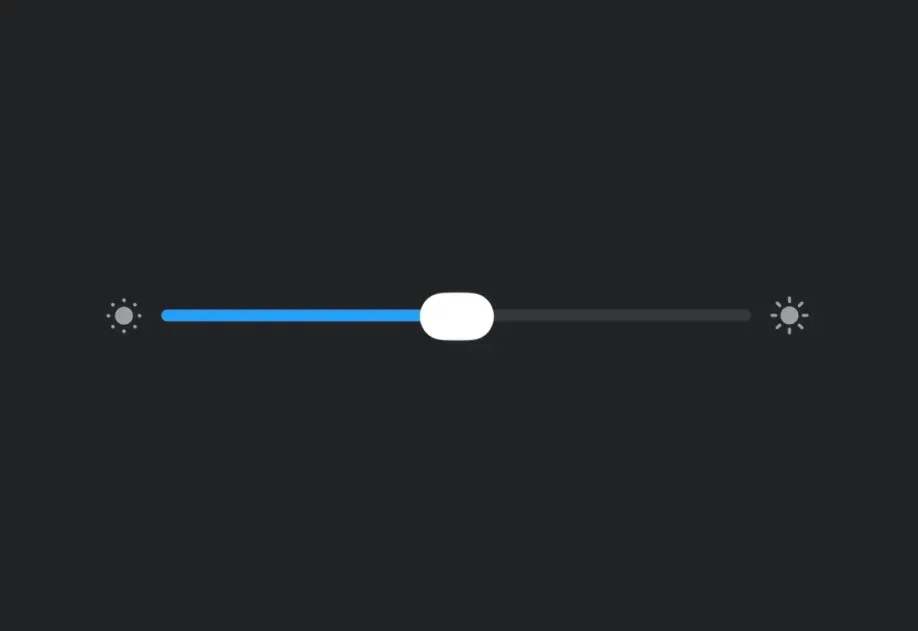
带图标的滑块

用于亮度或音量控制的常见模式是在 Slider 两侧放置图标。

Slider with icons
import { useState } from 'react'; import { Form, Host, HStack, Image, List, Section, Slider, Spacer, Text, Toggle, } from '@expo/ui/swift-ui'; import { padding } from '@expo/ui/swift-ui/modifiers'; export default function SliderWithIconsExample() { const [brightness, setBrightness] = useState(0.5); const [trueToneEnabled, setTrueToneEnabled] = useState(true); return ( <Host style={{ flex: 1 }}> <Form> <Section header={<Text>亮度</Text>} footer={ <Text> 根据环境光线自动调整 iPhone 显示效果,以便在不同环境中让颜色看起来保持一致。 </Text> } > <List> <HStack modifiers={[padding({ vertical: 6 })]}> <Image systemName="sun.min.fill" size={22} color="#8E8E93" /> <Spacer /> <Slider value={brightness} onValueChange={setBrightness} /> <Spacer /> <Image systemName="sun.max.fill" size={22} color="#8E8E93" /> </HStack> <Toggle label="原彩显示" isOn={trueToneEnabled} onIsOnChange={setTrueToneEnabled} /> </List> </Section> </Form> </Host> ); }

多行列表项

对于带标题和副标题的列表项,请使用 alignment="leading"VStack

Multi-line list item
import { Button, Form, Host, HStack, Image, List, Section, Spacer, Text, VStack, } from '@expo/ui/swift-ui'; import { buttonStyle, font, foregroundStyle, padding } from '@expo/ui/swift-ui/modifiers'; export default function MultiLineListItemExample() { return ( <Host style={{ flex: 1 }}> <Form> <Section> <List> <HStack> <Image systemName="safari" size={22} modifiers={[padding({ trailing: 6 })]} /> <Spacer /> <Button onPress={() => console.log('Navigate')} modifiers={[buttonStyle('plain'), padding({ vertical: 6 })]} > <VStack spacing={4} alignment="leading"> <Text>Chrome</Text> <Text modifiers={[foregroundStyle({type: 'hierarchical', style: 'secondary'}), font({ size: 14 })]}> 上次使用:今天 </Text> </VStack> <Spacer /> <Text modifiers={[ foregroundStyle({type: 'hierarchical', style: 'secondary'}), font({ size: 16 }), ]} > 1.57 GB </Text> <Image systemName="chevron.right" size={14} color="#C7C7CC" /> </Button> </HStack> </List> </Section> </Form> </Host> ); }

常见问题

我可以在 SwiftUI 组件中使用 flexbox 或其他样式吗?

Flexbox 样式可以应用于 Host 组件本身。不过,一旦进入 SwiftUI 上下文,Yoga 就不可用了——布局应该改用 <HStack><VStack> 来定义。

`Host` 组件是什么?

Host 是 SwiftUI 视图的容器。你可以把它看作 DOM 中的 <svg>,或者 react-native-skia 中的 <Canvas> 。在底层,它使用 UIHostingController 将 SwiftUI 视图渲染到 UIKit 中。

Expo UI 与 react-native-paperreact-native-elements 这类库有什么不同?

Expo UI 不是“又一个” UI 库,也不是一个带有明确设计观点的设计套件。相反,它是一个原语库。它直接将原生 SwiftUI 和 Jetpack Compose 组件暴露给 JavaScript,而不是在 JavaScript 中重新实现或模拟 UI。

我可以在 Android 或 web 上使用 @expo/ui/swift-ui 吗?

Expo UI 的第一个里程碑,是实现从 SwiftUI 到 Expo UI 的 1 对 1 映射。通用支持将在路线图的下一阶段到来。我们的优先事项是先建立强大的 SwiftUI 支持,然后再扩展到 Android 上的 Jetpack Compose 以及 Web 上的 DOM 支持。

我可以在 SwiftUI 组件中使用 React Native 组件吗?

可以,你可以把 React Native 组件作为 Expo UI 组件的 JSX 子元素放置。Expo UI 会自动为你创建一个 UIViewRepresentable 包装器。 不过请注意,SwiftUI 的布局系统与 UIKit 不同,并且有一些限制。根据 Apple 的文档:

警告 SwiftUI 会完全控制 UIKit 视图的 centerboundsframetransform 属性。不要在你自己的代码中直接对由 UIViewRepresentable 实例管理的视图设置这些与布局相关的属性,因为这会与 SwiftUI 冲突并导致未定义行为。

另外要注意,一旦你渲染了 React Native 组件,就意味着你已经离开了 SwiftUI 上下文。如果你想再次添加 Expo UI 组件,就需要重新引入一个 Host 包装器。

我们建议保持 SwiftUI 布局自包含。虽然可以互操作,但在边界定义清晰时效果最好。

我是 SwiftUI 开发者。为什么我应该学习 Expo UI?

因为 React 的承诺是 “学一次,到处写”,它现在也延伸到了 SwiftUI 和 Jetpack Compose。借助 Expo UI,你可以将自己的 SwiftUI 知识用于构建可运行在 React Native 生态中的应用,通过 DOM 组件 扩展到 Web,甚至集成 2D3D 渲染。这个系统足够灵活,因此应用的不同部分可以采用不同的方法——在组件层面实现无缝集成。

其他资源

Expo UI 参考

有关 API 组件、方法等信息,请参阅 Expo UI 参考。

Expo UI 示例

我们最新的 Expo UI 示例。

Hot Chocolate 应用示例

一个使用 Expo UI 复刻 YVR Hot Chocolate Fest 应用的示例。

Expo UI 多平台演示

一个展示 Expo UI 生产可用版本的项目,该包已在 SDK 56 及更高版本中提供。该项目可同时运行在电视端(Android TV、Apple TV)和移动端(Android、iOS)。演示界面包含 Jetpack Compose 和 Swift UI 中大多数可用组件。