Reference version

文本输入框

一个用于文本输入的 SwiftUI TextField 组件。

iOS
tvOS
Included in Expo Go
Bundled version:
~56.0.6

For the complete documentation index, see llms.txt. Use this file to discover all available pages.

关于跨平台使用,请参阅通用的 TextInput —— 它会针对每个平台渲染相应的原生组件。

Expo UI TextField 与官方 SwiftUI TextField API 保持一致,支持单行和多行输入、键盘配置、提交处理,以及用于程序化控制的命令式 ref

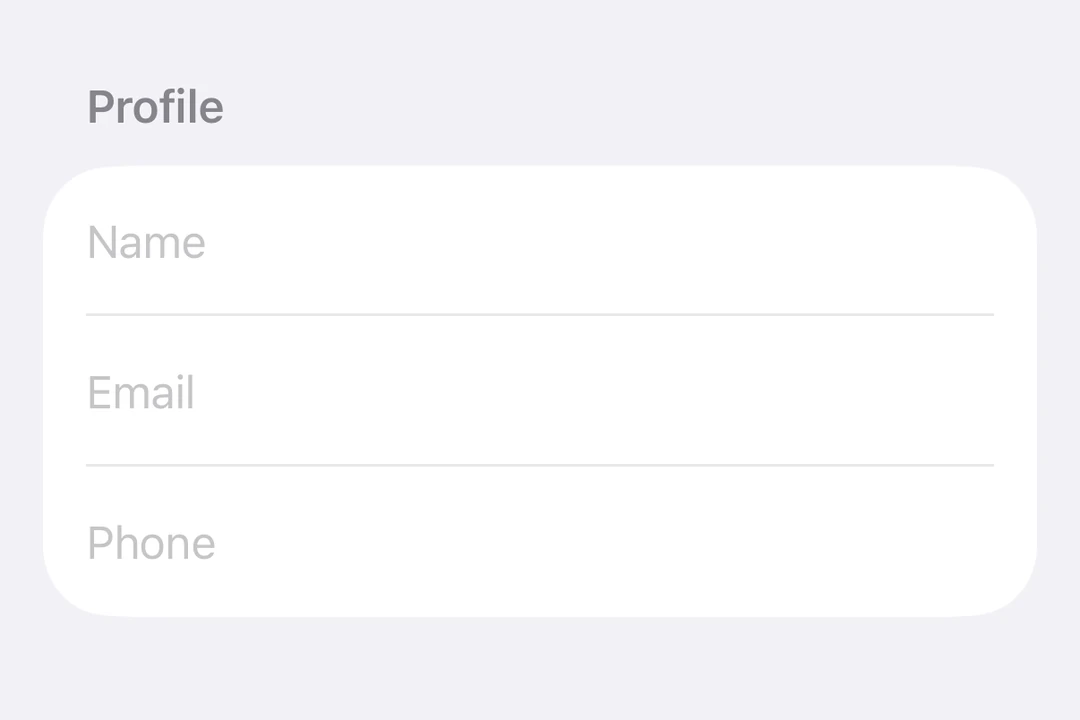
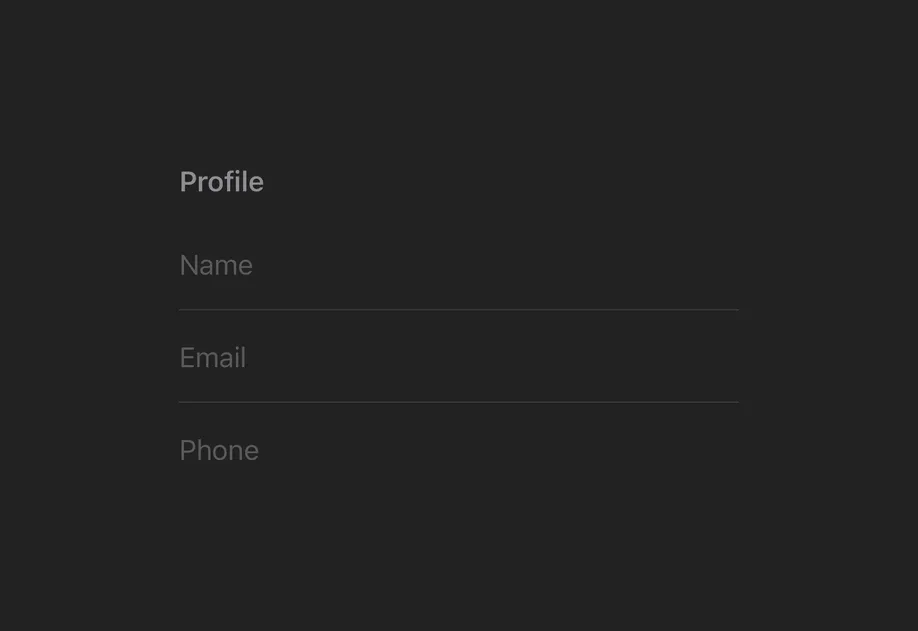
TextField 和 SecureField 位于 Form 中

安装

Terminal
npx expo install @expo/ui

If you are installing this in an existing React Native app, make sure to install expo in your project.

用法

非受控文本字段

useNativeState 可观察对象绑定到 text。该字段会自行跟踪用户输入,你可以从 textState.value 读取当前值。

BasicTextFieldExample.tsx
import { Host, TextField, useNativeState } from '@expo/ui/swift-ui'; export default function BasicTextFieldExample() { const textState = useNativeState(''); return ( <Host matchContents> <TextField placeholder="Username" text={textState} /> </Host> ); }

受控文本字段

传入一个 onTextChange worklet 来转换或校验输入,并将结果写回 useNativeState 可观察状态。下面的示例会在输入时将文本转换为大写。

注意: Worklet 需要安装 react-native-reanimatedreact-native-worklets

ControlledTextFieldExample.tsx
import { Host, TextField, useNativeState } from '@expo/ui/swift-ui'; import { useCallback } from 'react'; export default function ControlledTextFieldExample() { const text = useNativeState(''); const handleTextChange = useCallback( (value: string) => { 'worklet'; text.value = value.toUpperCase(); }, [text] ); return ( <Host matchContents> <TextField placeholder="Name" text={text} onTextChange={handleTextChange} /> </Host> ); }

多行文本字段

设置 axis="vertical" 以允许文本字段垂直扩展。使用 lineLimit 修饰符来控制可见行数。使用 Host matchContents 时,添加 fixedSize({ horizontal: false, vertical: true }),这样文本字段就能在使用理想高度的同时接受父容器的宽度。

MultilineTextFieldExample.tsx
import { Host, TextField, useNativeState } from '@expo/ui/swift-ui'; import { lineLimit, fixedSize } from '@expo/ui/swift-ui/modifiers'; export default function MultilineTextFieldExample() { const textState = useNativeState(''); return ( <Host matchContents> <TextField axis="vertical" text={textState} placeholder="Tell us about yourself..." modifiers={[lineLimit(5), fixedSize({ horizontal: false, vertical: true })]} /> </Host> ); }

键盘类型

使用 keyboardType 修饰符来显示特定的键盘布局。

KeyboardTypeExample.tsx
import { Host, TextField, useNativeState } from '@expo/ui/swift-ui'; import { keyboardType, autocorrectionDisabled } from '@expo/ui/swift-ui/modifiers'; export default function KeyboardTypeExample() { const textState = useNativeState(''); return ( <Host matchContents> <TextField placeholder="Email" text={textState} modifiers={[keyboardType('email-address'), autocorrectionDisabled()]} /> </Host> ); }

提交处理

使用 submitLabel 修饰符来自定义回车键,并使用 onSubmit 来处理提交操作。

SubmitHandlingExample.tsx
import { Host, TextField, useNativeState } from '@expo/ui/swift-ui'; import { submitLabel, onSubmit } from '@expo/ui/swift-ui/modifiers'; export default function SubmitHandlingExample() { const textState = useNativeState(''); return ( <Host matchContents> <TextField placeholder="Search..." text={textState} modifiers={[ submitLabel('search'), onSubmit(() => console.log('Submitted:', textState.value)), ]} /> </Host> ); }

命令式 ref

使用 ref 可以以命令式方式设置文本、聚焦、失焦或选择文本。

注意: setSelection 需要 iOS 18.0+ / tvOS 18.0+。其他 ref 方法可在所有受支持的版本上使用。

ImperativeRefExample.tsx
import { useRef } from 'react'; import { Host, TextField, TextFieldRef, Button, HStack, VStack, useNativeState, } from '@expo/ui/swift-ui'; import { buttonStyle } from '@expo/ui/swift-ui/modifiers'; export default function ImperativeRefExample() { const ref = useRef<TextFieldRef>(null); const textState = useNativeState('Select me!'); return ( <Host matchContents> <VStack> <TextField ref={ref} text={textState} placeholder="Imperative field" /> <HStack spacing={12}> <Button modifiers={[buttonStyle('bordered')]} onPress={() => ref.current?.focus()} label="聚焦" /> <Button modifiers={[buttonStyle('bordered')]} onPress={() => ref.current?.blur()} label="失焦" /> <Button modifiers={[buttonStyle('bordered')]} onPress={() => ref.current?.setText('SwiftUI rocks!')} label="设置文本" /> <Button modifiers={[buttonStyle('bordered')]} onPress={() => ref.current?.clear()} label="清除" /> <Button modifiers={[buttonStyle('bordered')]} onPress={() => ref.current?.setSelection(0, 7)} label="选择" /> </HStack> </VStack> </Host> ); }

工作线程文本掩码

onTextChange 带有 'worklet' 指令标记时,它会同步运行在 UI 线程上,因此在回调中对 useNativeState 可观察对象的写入会在下一帧之前生效。输入文本和掩码文本之间不会出现闪烁。下面的示例会在用户输入时对电话号码进行掩码,并从 worklet 中同时写入 textselection,以使光标保持在格式化后值的末尾。

注意: Worklet 需要安装 react-native-reanimatedreact-native-workletsselection 属性需要 iOS 18.0+ / tvOS 18.0+。在较旧版本上,worklet 仍然可以更新文本,但无法进行光标定位。

WorkletPhoneMaskExample.tsx
import { Host, TextField, useNativeState } from '@expo/ui/swift-ui'; import { keyboardType } from '@expo/ui/swift-ui/modifiers'; import { useCallback } from 'react'; export default function WorkletPhoneMaskExample() { const phone = useNativeState(''); const selection = useNativeState({ start: 0, end: 0 }); const handleTextChange = useCallback( (v: string) => { 'worklet'; const digits = v.replace(/\D/g, '').slice(0, 10); let formatted = digits; if (digits.length > 6) { formatted = `(${digits.slice(0, 3)}) ${digits.slice(3, 6)}-${digits.slice(6)}`; } else if (digits.length > 3) { formatted = `(${digits.slice(0, 3)}) ${digits.slice(3)}`; } if (formatted !== v) { phone.value = formatted; // 为演示效果,光标跳到末尾。真正的掩码需要更智能的光标处理。 selection.value = { start: formatted.length, end: formatted.length }; } }, [phone, selection] ); return ( <Host matchContents> <TextField text={phone} selection={selection} placeholder="(555) 123-4567" modifiers={[keyboardType('phone-pad')]} onTextChange={handleTextChange} /> </Host> ); }

API

import { TextField } from '@expo/ui/swift-ui';

Component

TextField

iOS
tvOS

Type: React.Element<TextFieldProps>

Renders a SwiftUI TextField.

TextFieldProps

autoFocus

iOS
tvOS
Optional • Type: boolean • Default: false

If true, the text field will be focused automatically when mounted.

axis

iOS
tvOS
Optional • Literal type: string • Default: 'horizontal'

The axis along which the text field grows when content exceeds a single line.

  • 'horizontal' — single line (default).
  • 'vertical' — expands vertically for multiline content. Use lineLimit modifier to cap visible lines.

Acceptable values are: 'horizontal' | 'vertical'

children

iOS
tvOS
Optional • Type: React.ReactNode

Slot children — supports <TextField.Placeholder> with a <Text> child (any text-styling modifiers on that Text are preserved as the placeholder's styling).

maxLength

iOS
tvOS
Optional • Type: number

Maximum number of characters allowed. Truncates natively as the user types.

onFocusChange

iOS
tvOS
Optional • Type: (focused: boolean) => void

A callback triggered when the field gains or loses focus.

onSelectionChange

iOS 18.0+ tvos 18.0+
Optional • Type: (selection: { end: number, start: number }) => void

A callback triggered when the text selection range changes.

onTextChange

iOS
tvOS
Optional • Type: (text: string) => void

A callback triggered when the text value changes.

If the callback is marked with the 'worklet' directive, it runs synchronously on the UI thread; otherwise it is delivered asynchronously as a regular JS event.

placeholder

iOS
tvOS
Optional • Type: string

A text that is displayed when the field is empty.

ref

iOS
tvOS
Optional • Type: Ref<TextFieldRef>

selection

iOS 18.0+ tvos 18.0+
Optional • Type: ObservableState<TextFieldSelection>

Observable state the field writes the current selection to. Create with useNativeState<TextFieldSelection>({ start: 0, end: 0 }). Use ref.setSelection(start, end) to set programmatically.

text

iOS
tvOS
Optional • Type: ObservableState<string>

An observable state that holds the current text. Create one with useNativeState('') or useNativeState('initial value'). If omitted, the field manages its own internal state.

Types

ObservableState

iOS
tvOS

Observable state shared between JavaScript and native views (Jetpack Compose on Android and SwiftUI on iOS).

Type: SharedObject extended by:

PropertyTypeDescription
valueT

The current value. Reads are safe from any thread; prefer writing from a worklet so the update runs on the native UI thread. Updating state from the JS thread might show a development warning.

TextFieldRef

iOS
tvOS

Can be used for imperatively focusing and setting text/selection on the TextField component.

PropertyTypeDescription
blur() => Promise<void>
-
clear() => Promise<void>

Clear the current text.

focus() => Promise<void>
-
setSelection(start: number, end: number) => Promise<void>
Only for:
iOS 18.0+ tvos 18.0+

Programmatically set the selection range.

setText(newText: string) => Promise<void>
-

TextFieldSelection

iOS
tvOS

Selection range — start and end are character offsets into the field's text.

PropertyTypeDescription
endnumber
-
startnumber
-