Reference version

TabView

一个用于分页或选项卡内容的 SwiftUI TabView 组件。

iOS
tvOS
Included in Expo Go
Bundled version:
~56.0.6

For the complete documentation index, see llms.txt. Use this file to discover all available pages.

Expo UI TabView 与官方 SwiftUI TabView API 一致,并通过 tabViewStyle 修饰符在不同样式之间切换。
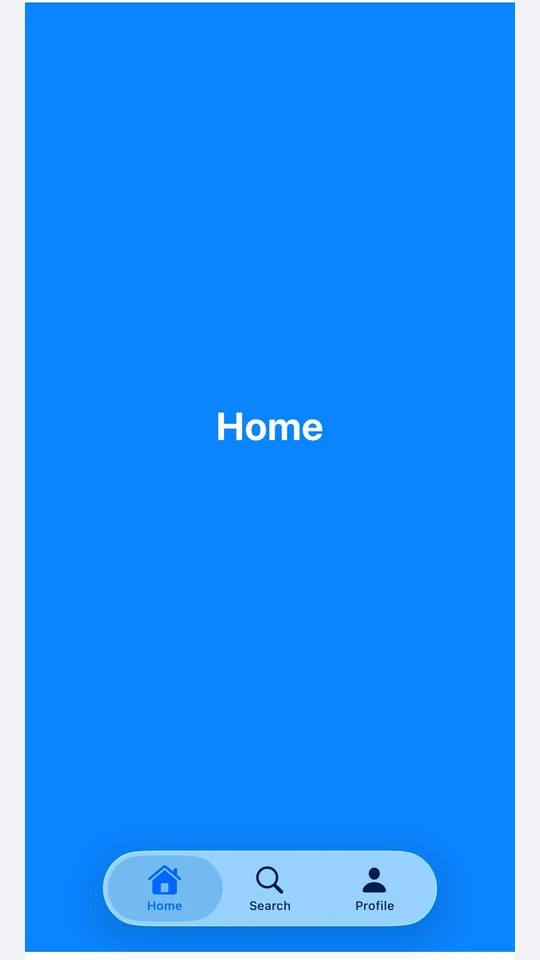
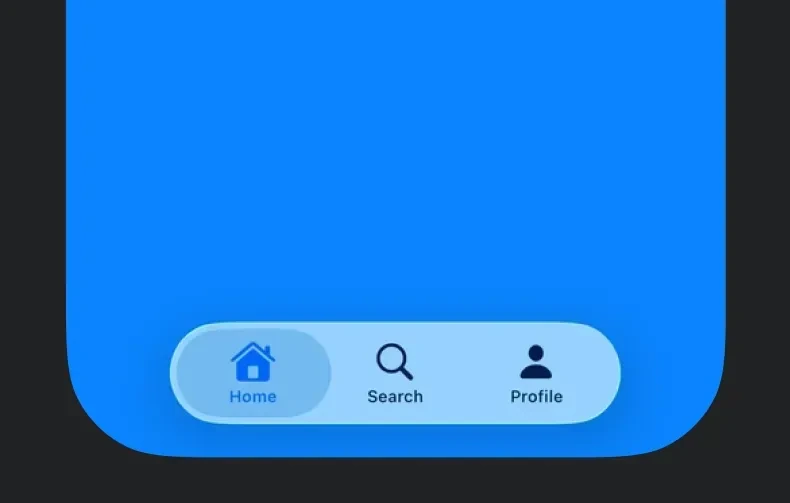
一个带有底部标签栏的 TabView,在 iOS 26 Liquid Glass 风格下显示 Home、Search 和 Profile 标签

注意: 对于跨全屏路由的有路由底部标签导航,请改用 expo-router/unstable-native-tabs`

安装

Terminal
npx expo install @expo/ui

If you are installing this in an existing React Native app, make sure to install expo in your project.

用法

每个页面都是一个 <TabView.Tab> 子组件,通过 value 属性进行标识。TabView 本身不会强制设定高度——请为它设置一个 frame,或者将它放在一个会提供高度的父容器中。

页面样式(可滑动分页器)

使用 tabViewStyle({ type: 'page' }) 可获得带可选圆点指示器的横向分页器。传入 defaultSelection 可让分页器从指定页面开始,而无需由 React 来控制它。

PagerExample.tsx
import { Host, Spacer, TabView, Text, VStack } from '@expo/ui/swift-ui'; import { background, font, foregroundStyle, frame, tabViewStyle, } from '@expo/ui/swift-ui/modifiers'; const fillFrame = frame({ maxWidth: Infinity, maxHeight: Infinity }); const pageFrame = frame({ minHeight: 320, maxHeight: 320 }); export default function PagerExample() { return ( <Host style={{ flex: 1 }}> <TabView defaultSelection="1" modifiers={[pageFrame, tabViewStyle({ type: 'page' })]}> <TabView.Tab value="0"> <Page label="第 1 页" color="#6200EE" /> </TabView.Tab> <TabView.Tab value="1"> <Page label="第 2 页" color="#03DAC5" /> </TabView.Tab> <TabView.Tab value="2"> <Page label="第 3 页" color="#FF5722" /> </TabView.Tab> </TabView> </Host> ); } function Page({ label, color }: { label: string; color: string }) { return ( <VStack alignment="center" modifiers={[fillFrame, background(color)]}> <Spacer /> <Text modifiers={[font({ size: 28, weight: 'bold' }), foregroundStyle('#FFFFFF')]}> {label} </Text> <Spacer /> </VStack> ); }

受控选择

传入 selectiononSelectionChange,即可通过 React 状态驱动当前激活的标签页。每个 <TabView.Tab>value 都会与 selection 进行匹配。当 selection 从 JS 发生变化时,添加 animation 修饰符可为切换添加动画。

ControlledTabViewExample.tsx
import { useState } from 'react'; import { Button, Host, Spacer, TabView, Text, VStack } from '@expo/ui/swift-ui'; import { animation, Animation, background, font, foregroundStyle, frame, tabViewStyle, } from '@expo/ui/swift-ui/modifiers'; const fillFrame = frame({ maxWidth: Infinity, maxHeight: Infinity }); const pageFrame = frame({ minHeight: 320, maxHeight: 320 }); export default function ControlledTabViewExample() { const [selected, setSelected] = useState('0'); return ( <Host style={{ flex: 1 }}> <VStack> <Text>已选择:{selected}</Text> <Button label="跳转到第 3 页" onPress={() => setSelected('2')} /> <TabView selection={selected} onSelectionChange={setSelected} modifiers={[ pageFrame, tabViewStyle({ type: 'page' }), animation(Animation.default, Number(selected)), ]}> <TabView.Tab value="0"> <Page label="第 1 页" color="#6200EE" /> </TabView.Tab> <TabView.Tab value="1"> <Page label="第 2 页" color="#03DAC5" /> </TabView.Tab> <TabView.Tab value="2"> <Page label="第 3 页" color="#FF5722" /> </TabView.Tab> </TabView> </VStack> </Host> ); } function Page({ label, color }: { label: string; color: string }) { return ( <VStack alignment="center" modifiers={[fillFrame, background(color)]}> <Spacer /> <Text modifiers={[font({ size: 28, weight: 'bold' }), foregroundStyle('#FFFFFF')]}> {label} </Text> <Spacer /> </VStack> ); }

页面指示圆点

结合 tabViewStyle({ type: 'page' }) 使用 indexViewStyle 修饰符来控制圆点指示器。将 indexDisplayMode 设为 'always''never''automatic',并设置 backgroundDisplayMode 以在圆点后渲染一个半透明胶囊背景。

PageIndicatorExample.tsx
import { Host, Spacer, TabView, Text, VStack } from '@expo/ui/swift-ui'; import { background, font, foregroundStyle, frame, indexViewStyle, tabViewStyle, } from '@expo/ui/swift-ui/modifiers'; const fillFrame = frame({ maxWidth: Infinity, maxHeight: Infinity }); const pageFrame = frame({ minHeight: 320, maxHeight: 320 }); export default function PageIndicatorExample() { return ( <Host style={{ flex: 1 }}> <TabView modifiers={[ pageFrame, tabViewStyle({ type: 'page', indexDisplayMode: 'always' }), indexViewStyle({ backgroundDisplayMode: 'always' }), ]}> <TabView.Tab value="0"> <Page label="第 1 页" color="#4F8DF6" /> </TabView.Tab> <TabView.Tab value="1"> <Page label="第 2 页" color="#34C759" /> </TabView.Tab> <TabView.Tab value="2"> <Page label="第 3 页" color="#FF9F0A" /> </TabView.Tab> </TabView> </Host> ); } function Page({ label, color }: { label: string; color: string }) { return ( <VStack alignment="center" modifiers={[fillFrame, background(color)]}> <Spacer /> <Text modifiers={[font({ size: 28, weight: 'bold' }), foregroundStyle('#FFFFFF')]}> {label} </Text> <Spacer /> </VStack> ); }

底部标签栏

使用 tabViewStyle({ type: 'automatic' }) 可获得 SwiftUI 默认的标签栏。每个标签页的 labelsystemImage 会填充到栏项目中。可在某个标签页上使用 badge 修饰符,为其栏项目添加徽标。

注意: 对于跨全屏路由的有路由底部标签导航,请改用 expo-router/unstable-native-tabs`

BottomTabsExample.tsx
import { useState } from 'react'; import { Host, Spacer, TabView, Text, VStack } from '@expo/ui/swift-ui'; import { background, badge, font, foregroundStyle, frame, tabViewStyle, } from '@expo/ui/swift-ui/modifiers'; const fillFrame = frame({ maxWidth: Infinity, maxHeight: Infinity }); export default function BottomTabsExample() { const [selected, setSelected] = useState('inbox'); return ( <Host style={{ flex: 1 }}> <TabView selection={selected} onSelectionChange={setSelected} modifiers={[tabViewStyle({ type: 'automatic' })]}> <TabView.Tab value="inbox" label="收件箱" systemImage="tray.fill" modifiers={[badge('3')]}> <Page label="收件箱" color="#4F8DF6" /> </TabView.Tab> <TabView.Tab value="sent" label="已发送" systemImage="paperplane.fill"> <Page label="已发送" color="#34C759" /> </TabView.Tab> <TabView.Tab value="drafts" label="草稿" systemImage="square.and.pencil"> <Page label="草稿" color="#FF9F0A" /> </TabView.Tab> </TabView> </Host> ); } function Page({ label, color }: { label: string; color: string }) { return ( <VStack alignment="center" modifiers={[fillFrame, background(color)]}> <Spacer /> <Text modifiers={[font({ size: 28, weight: 'bold' }), foregroundStyle('#FFFFFF')]}> {label} </Text> <Spacer /> </VStack> ); }

API

import { TabView } from '@expo/ui/swift-ui';

Component

TabView

iOS

Type: React.Element<TabViewProps>

A SwiftUI TabView. Pair with modifiers to choose the appearance:

  • tabViewStyle({ type: 'page' }) — swipeable pager.
  • tabViewStyle({ type: 'automatic' }) — bottom tab bar.
  • tabViewStyle({ type: 'sidebarAdaptable' }) — sidebar on iPad, tab bar on iPhone.

Use <TabView.Tab> children to define pages. Each tab is identified by its value prop, which is used for selection.

For routed bottom-tab navigation across full-screen routes, prefer expo-router/unstable-native-tabs.

TabViewProps

children

iOS
Type: React.ReactNode

The tab's content — rendered when this tab is selected.

label

iOS
Optional • Type: string

Text label shown in the tab bar or sidebar.

systemImage

iOS
Optional • Type: SFSymbol

SF Symbol name shown alongside the label.

value

iOS
Type: string

Identifies this tab. Matched against the parent TabView's selection and defaultSelection props.

children

iOS
Literal type: union

<TabView.Tab> elements defining the pages.

Acceptable values are: React.ReactElement | React.ReactElement

defaultSelection

iOS
Optional • Type: string

The initially selected tab when the component is uncontrolled (no selection prop). Ignored if selection is provided.

onSelectionChange

iOS
Optional • Type: (selection: string) => void

Called when the selected tab changes.

selection

iOS
Optional • Type: string

The selected tab (controlled mode). Pair with onSelectionChange. Pass defaultSelection instead to let the native view manage state.