This documentation is available as Markdown for AI agents and LLMs. See the full Markdown index or append .md to any documentation URL.
This is documentation for the next SDK version. For up-to-date documentation, see the latest version (SDK 57).
文本输入
一个由原生 SwiftUI 和 Jetpack Compose 组件支持的文本输入,提供与 React Native 兼容的 API。
一个文本输入组件,在 Android 上路由到 @expo/ui/jetpack-compose 中的 TextField,在 iOS 上路由到 @expo/ui/swift-ui 中的 TextField,在 Web 上路由到 React Native 的 TextInput。
该 API 与 React Native 的 TextInput 保持一致,但有两处不同:value 和 selection 是可观察的状态对象(通过 useNativeState 创建),并且 onChangeText 可以是一个 worklet,用于在 UI 线程上同步更新状态。
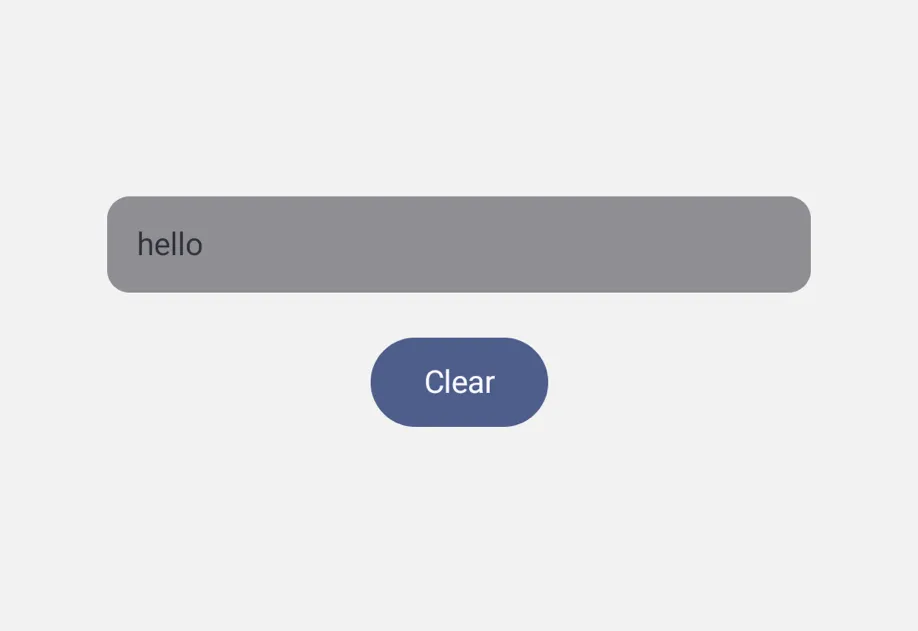
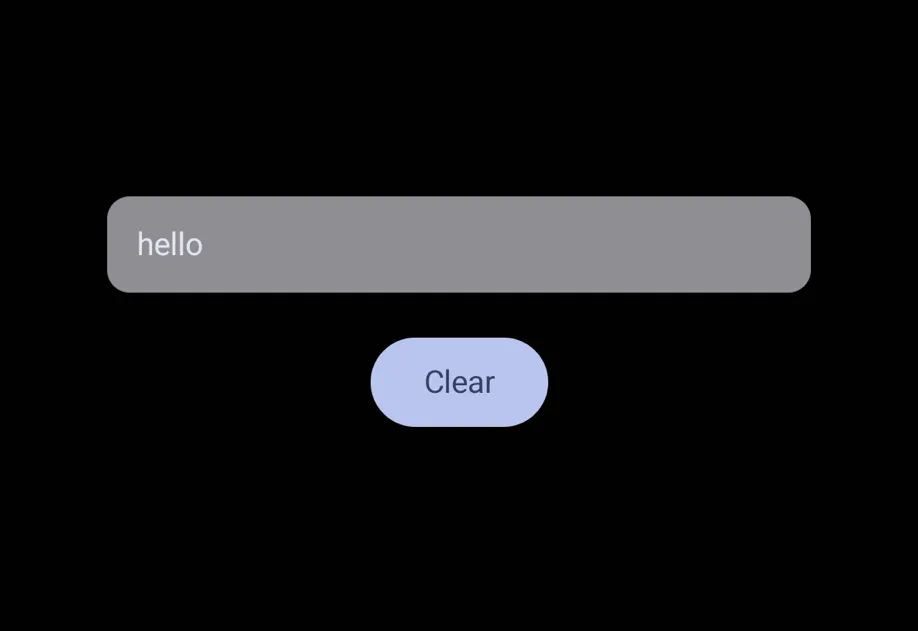
安装
If you are installing this in an existing React Native app, make sure to install expo in your project.
用法
非受控
省略 value,字段会在内部管理自己的文本。使用 onChangeText 来观察编辑,并使用 ref 执行诸如 focus、blur 和 clear 之类的命令式操作。
受控
传入 value 以通过 useNativeState 可观察对象驱动字段。下面的示例会在你输入时将 Hello 替换为 World。
Worklet 掩码
为 onChangeText 添加 'worklet' 指令,以便在 UI 线程上同步更新状态。对 value 的写入不会经过 JS 线程往返,这可能导致光标闪烁。
注意: Worklets 需要安装
react-native-worklets.
不支持的 React Native 属性
某些 React Native TextInput 属性不受支持,因为 Compose 的 TextField 或 SwiftUI 的 TextField 没有提供对应能力,或者该属性已被其他机制替代。有关支持的属性,请参见下面的 API 部分。如果缺失的属性阻碍了你的使用场景,请 提交 issue,以便优先处理。
API
import { TextInput, useNativeState } from '@expo/ui';
Component
Type: React.Element<TextInputProps>
string • Default: 'sentences'Controls automatic capitalization of input.
Acceptable values are: 'none' | 'words' | 'sentences' | 'characters'
AutoCompleteAutofill hint. iOS maps to textContentType; Android maps to Compose's
Modifier.semantics { contentType = ... }.
boolean • Default: trueIf false, disables autocorrect / spellcheck suggestions.
booleanIf true, the cursor is hidden.
On iOS, this is implemented via tint('transparent'), which also makes
the selection highlight invisible. If you set both caretHidden and
selectionColor, the caret-hide wins on iOS.
stringInitial text shown when the input mounts and value is not provided.
Ignored once the user starts typing or if value is set.
boolean • Default: trueIf false, the input cannot be edited. Selection is still allowed so the user can copy text out of the field.
EnterKeyHintHTML-style hint for the keyboard return key. Maps to returnKeyType.
When both are set, returnKeyType wins.
InputModeHTML-style hint for the keyboard variant. Maps to keyboardType. When
both are set, keyboardType wins.
KeyboardTypeOptions • Default: 'default'Determines which keyboard variant is shown.
Lacking native support:
- iOS:
'visible-password'falls back to the default keyboard. - Android: iOS-specific values (
'ascii-capable','numbers-and-punctuation','name-phone-pad','twitter','web-search') fall back to the text keyboard.
ModifierConfig[]Platform-specific modifier escape hatch. Pass an array of modifier configs
from @expo/ui/swift-ui/modifiers or @expo/ui/jetpack-compose/modifiers.
Modifiers from the wrong platform are ignored at runtime.
boolean • Default: falseIf true, the field accepts multiple lines of input and grows vertically as the user types.
numberNumber of lines the field reserves when multiline is true. Forces a
fixed visible height of that many lines.
Lacking native support:
- iOS: requires iOS 16+; below that, the field grows naturally.
(text: string) => voidCalled every time the text value changes. Receives the new string.
(size: {
  height: number,
  width: number
}) => void
Called when the rendered size of the input changes. Sizes in points/dp.
Unlike RN's onContentSizeChange, this dispatches the view's outer
geometry, including any padding/border applied via style or modifiers.
If you use this for autogrow, account for that.
(selection: {
  end: number,
  start: number
}) => void
Called when the text selection range changes.
(text: string) => voidCalled when the user taps the keyboard return key. Receives the current text in the input.
boolean • Default: falseAlias for editable={false}. When both are set, editable wins.
Ref<TextInputRef>Ref exposing imperative methods (focus, blur, clear).
ReturnKeyTypeOptionsDetermines the label of the keyboard return key.
Lacking native support:
- iOS:
'emergency-call'falls back to the default Return key. - Android:
'join','route','emergency-call'fall back to the default action.
numberHTML-style alias for numberOfLines. When both are set, numberOfLines wins.
boolean • Default: falseIf true, the input obscures its text — used for password fields.
- iOS: backed by SwiftUI's
SecureField. The following props are no-ops in this mode:selection,selectTextOnFocus,onSelectionChange,multiline,numberOfLines. - Android: backed by Compose's
PasswordVisualTransformation.
ObservableState<{
  end: number,
  start: number
}>
Observable state the field writes the current selection to.
Create with useNativeState({ start: 0, end: 0 }).
Use ref.setSelection(start, end) to set selection programmatically.
ColorValueColor of the selected text highlight. On iOS this also tints the cursor
(UIKit's tintColor covers both); pass cursorColor only if you want
different cursor color on Android.
boolean • Default: falseIf true, all text is selected when the field gains focus. Implemented
via setSelection(0, length) on focus, so if you also pass selection,
its value is overwritten on every focus.
Pick<ViewStyle, 'padding' | 'paddingHorizontal' | 'paddingVertical' | 'paddingTop' | 'paddingBottom' | 'paddingLeft' | 'paddingRight' | 'backgroundColor' | 'borderRadius' | 'borderWidth' | 'borderColor' | 'opacity' | 'width' | 'height'>Box-level style — sizing, padding, background, border, opacity.
stringIdentifier used to locate the component in end-to-end tests.
string • Default: 'auto'Horizontal alignment of the text content.
Lacking native support:
- iOS:
'justify'is not supported by SwiftUI'sTextFieldand falls back to the default alignment.
Acceptable values are: 'center' | 'auto' | 'left' | 'right' | 'justify'
{
  color: string,
  fontFamily: string,
  fontSize: number,
  fontWeight: 'normal' | 'bold' | '100' | '200' | '300' | '400' | '500' | '600' | '700' | '800' | '900',
  letterSpacing: number,
  lineHeight: number,
  textAlign: 'center' | 'left' | 'right'
}
Text-level style — font, color, alignment, spacing.
Deprecated: The Android
TextInputrenders an unstyledBasicTextFieldthat has no underline indicator, so this has no effect. To draw your own border, pass it throughstyleormodifiers.
ColorValueColor of the underline indicator on Android.
Types
Observable state created with useNativeState.
On Android and iOS, the value is shared with native views. A write from the JavaScript thread is applied on the UI thread asynchronously, so a read right after it may still return the previous value. Writes don't re-render the component that created the state.
On web, the value is backed by React state. A write is readable immediately and re-renders the component that created the state.