使用图片选择器

编辑页面

在本教程中,学习如何使用 Expo Image Picker。


For the complete documentation index, see llms.txt. Use this Use this file to discover all available pages.

React Native 提供了内置组件,作为标准构建块,例如 <View><Text><Pressable>。我们正在构建一个功能,用于从设备的媒体库中选择图片。仅靠核心组件无法实现这一点,因此我们需要一个库来为应用添加这个功能。

我们将使用 expo-image-picker,这是 Expo SDK 中的一个库。

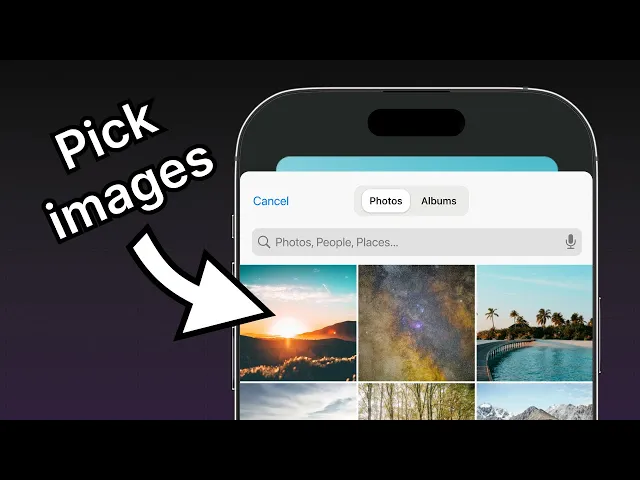
expo-image-picker 提供对系统 UI 的访问,用于从手机的图库中选择图片和视频。

Watch: 在你的通用 Expo 应用中使用图片选择器

了解如何使用 expo-image-picker 从设备的媒体库中选择图片。


1

安装 expo-image-picker

要安装 expo-image-picker 库,请先在终端中按 Ctrl + c 停止开发服务器,然后运行以下命令:

Terminal
npx expo install expo-image-picker

npx expo install 命令会安装该库,并将其添加到项目的 package.json 依赖中。

提示: 每次在项目中安装新库时,都请先在终端中按 Ctrl + c 停止开发服务器,然后运行安装命令。安装完成后,通过运行 npx expo start 重新启动开发服务器。

2

从设备的媒体库中选择图片

expo-image-picker 提供 launchImageLibraryAsync() 方法,通过从设备的媒体库中选择图片或视频来显示系统 UI。我们将使用上一章创建的主主题按钮,从设备的媒体库中选择图片,并创建一个函数来打开设备的图片库以实现此功能。

app/(tabs)/index.tsx 中,导入 expo-image-picker 库,并在 Index 组件内部创建一个 pickImageAsync() 函数:

app/(tabs)/index.tsx
// ...其余的导入语句保持不变 import * as ImagePicker from 'expo-image-picker'; export default function Index() { const pickImageAsync = async () => { let result = await ImagePicker.launchImageLibraryAsync({ mediaTypes: ['images'], allowsEditing: true, quality: 1, }); if (!result.canceled) { console.log(result); } else { alert('You did not select any image.'); } }; // ...其余代码保持不变 }

让我们来了解一下上面的代码做了什么:

  • launchImageLibraryAsync() 接收一个对象,用于指定不同的选项。这个对象是 ImagePickerOptions 对象,我们在调用该方法时会传入它。
  • allowsEditing 设置为 true 时,用户可以在 Android 和 iOS 上的选择过程中裁剪图片。

3

更新按钮组件

按下主按钮时,我们会在 Button 组件上调用 pickImageAsync() 函数。更新 components/Button.tsxButton 组件的 onPress 属性:

components/Button.tsx
import { StyleSheet, View, Pressable, Text } from 'react-native'; import FontAwesome from '@expo/vector-icons/FontAwesome'; type Props = { label: string; theme?: 'primary'; onPress?: () => void; }; export default function Button({ label, theme, onPress }: Props) { if (theme === 'primary') { return ( <View style={[ styles.buttonContainer, { borderWidth: 4, borderColor: '#ffd33d', borderRadius: 18 }, ]}> <Pressable style={[styles.button, { backgroundColor: '#fff' }]} onPress={onPress}> <FontAwesome name="picture-o" size={18} color="#25292e" style={styles.buttonIcon} /> <Text style={[styles.buttonLabel, { color: '#25292e' }]}>{label}</Text> </Pressable> </View> ); } return ( <View style={styles.buttonContainer}> <Pressable style={styles.button} onPress={() => alert('You pressed a button.')}> <Text style={styles.buttonLabel}>{label}</Text> </Pressable> </View> ); } const styles = StyleSheet.create({ buttonContainer: { width: 320, height: 68, marginHorizontal: 20, alignItems: 'center', justifyContent: 'center', padding: 3, }, button: { borderRadius: 10, width: '100%', height: '100%', alignItems: 'center', justifyContent: 'center', flexDirection: 'row', }, buttonIcon: { paddingRight: 8, }, buttonLabel: { color: '#fff', fontSize: 16, }, });

app/(tabs)/index.tsx 中,将 pickImageAsync() 函数添加到第一个 <Button>onPress 属性中。

app/(tabs)/index.tsx
import { View, StyleSheet } from 'react-native'; import * as ImagePicker from 'expo-image-picker'; import Button from '@/components/Button'; import ImageViewer from '@/components/ImageViewer'; const PlaceholderImage = require('@/assets/images/background-image.png'); export default function Index() { const pickImageAsync = async () => { let result = await ImagePicker.launchImageLibraryAsync({ mediaTypes: ['images'], allowsEditing: true, quality: 1, }); if (!result.canceled) { console.log(result); } else { alert('You did not select any image.'); } }; return ( <View style={styles.container}> <View style={styles.imageContainer}> <ImageViewer imgSource={PlaceholderImage} /> </View> <View style={styles.footerContainer}> <Button theme="primary" label="Choose a photo" onPress={pickImageAsync} /> <Button label="Use this photo" /> </View> </View> ); } const styles = StyleSheet.create({ container: { flex: 1, backgroundColor: '#25292e', alignItems: 'center', }, imageContainer: { flex: 1, }, footerContainer: { flex: 1 / 3, alignItems: 'center', }, });

pickImageAsync() 函数调用 ImagePicker.launchImageLibraryAsync(),然后处理返回结果。launchImageLibraryAsync() 方法会返回一个包含所选图片信息的对象。

下面是 result 对象的示例以及它包含的属性:

{ "assets": [ { "assetId": null, "base64": null, "duration": null, "exif": null, "fileName": "ea574eaa-f332-44a7-85b7-99704c22b402.jpeg", "fileSize": 4513577, "height": 4570, "mimeType": "image/jpeg", "rotation": null, "type": "image", "uri": "file:///data/user/0/host.exp.exponent/cache/ExperienceData/%2540anonymous%252FStickerSmash-13f21121-fc9d-4ec6-bf89-bf7d6165eb69/ImagePicker/ea574eaa-f332-44a7-85b7-99704c22b402.jpeg", "width": 2854 } ], "canceled": false }
{ "assets": [ { "assetId": "99D53A1F-FEEF-40E1-8BB3-7DD55A43C8B7/L0/001", "base64": null, "duration": null, "exif": null, "fileName": "IMG_0004.JPG", "fileSize": 2548364, "height": 1669, "mimeType": "image/jpeg", "type": "image", "uri": "file:///data/user/0/host.exp.exponent/cache/ExperienceData/%2540anonymous%252FStickerSmash-13f21121-fc9d-4ec6-bf89-bf7d6165eb69/ImagePicker/ea574eaa-f332-44a7-85b7-99704c22b402.jpeg", "width": 1668 } ], "canceled": false }
{ "assets": [ { "fileName": "some-image.png", "height": 720, "mimeType": "image/png", "uri": "data:image/png;base64,iVBORw0KGgoAAAANSUhEUgAABQAA" } ], "canceled": false }

4

使用所选图片

result 对象提供了 assets 数组,其中包含所选图片的 uri。让我们从图片选择器中取出这个值,并将其用于在应用中显示所选图片。

修改 app/(tabs)/index.tsx 文件:

  1. 使用 React 的 useState 钩子声明一个名为 selectedImage 的状态变量。我们将使用这个状态变量来保存所选图片的 URI。
  2. 更新 pickImageAsync() 函数,将图片 URI 保存到 selectedImage 状态变量中。
  3. selectedImage 作为 prop 传递给 ImageViewer 组件。
app/(tabs)/index.tsx
import { View, StyleSheet } from 'react-native'; import * as ImagePicker from 'expo-image-picker'; import { useState } from 'react'; import Button from '@/components/Button'; import ImageViewer from '@/components/ImageViewer'; const PlaceholderImage = require('@/assets/images/background-image.png'); export default function Index() { const [selectedImage, setSelectedImage] = useState<string | undefined>(undefined); const pickImageAsync = async () => { let result = await ImagePicker.launchImageLibraryAsync({ mediaTypes: ['images'], allowsEditing: true, quality: 1, }); if (!result.canceled) { setSelectedImage(result.assets[0].uri); } else { alert('You did not select any image.'); } }; return ( <View style={styles.container}> <View style={styles.imageContainer}> <ImageViewer imgSource={PlaceholderImage} selectedImage={selectedImage} /> </View> <View style={styles.footerContainer}> <Button theme="primary" label="Choose a photo" onPress={pickImageAsync} /> <Button label="Use this photo" /> </View> </View> ); } const styles = StyleSheet.create({ container: { flex: 1, backgroundColor: '#25292e', alignItems: 'center', }, imageContainer: { flex: 1, }, footerContainer: { flex: 1 / 3, alignItems: 'center', }, });

selectedImage prop 传递给 ImageViewer 组件,以显示所选图片而不是占位图片。

  1. 修改 components/ImageViewer.tsx 文件,以接收 selectedImage prop。
  2. 图片的源代码现在变得很长,所以我们也把它移动到一个单独的变量 imageSource 中。
  3. imageSource 作为 Image 组件上 source prop 的值传入。
components/ImageViewer.tsx
import { ImageSourcePropType, StyleSheet } from 'react-native'; import { Image } from 'expo-image'; type Props = { imgSource: ImageSourcePropType; selectedImage?: string; }; export default function ImageViewer({ imgSource, selectedImage }: Props) { const imageSource = selectedImage ? { uri: selectedImage } : imgSource; return <Image source={imageSource} style={styles.image} />; } const styles = StyleSheet.create({ image: { width: 320, height: 440, borderRadius: 18, }, });

在上面的代码片段中,Image 组件使用条件运算符来加载图片源。所选图片是一个 uri 字符串,而不是像占位图片那样的本地资源。

让我们看看现在的应用:

本教程中示例应用使用的图片来自 Unsplash

摘要

Chapter 4: Use an image picker

我们已经成功添加了从设备媒体库中选择图像的功能。

在下一章中,我们将学习如何创建一个表情符号选择器模态组件。

Next: 创建表情符号选择器模态