构建一个屏幕
编辑页面
在本教程中,学习如何使用诸如 React Native 的 Pressable 和 Expo Image 等组件来构建一个屏幕。
For the complete documentation index, see llms.txt. Use this Use this file to discover all available pages.
在本章中,我们将创建 StickerSmash 应用的第一个屏幕。
上面的屏幕显示了一张图片和两个按钮。应用用户可以使用这两个按钮中的任意一个来选择图片。第一个按钮允许用户从设备中选择图片。第二个按钮允许用户继续使用应用提供的默认图片。
一旦用户选择了图片,他们就可以为其添加贴纸。所以,让我们开始创建这个屏幕。
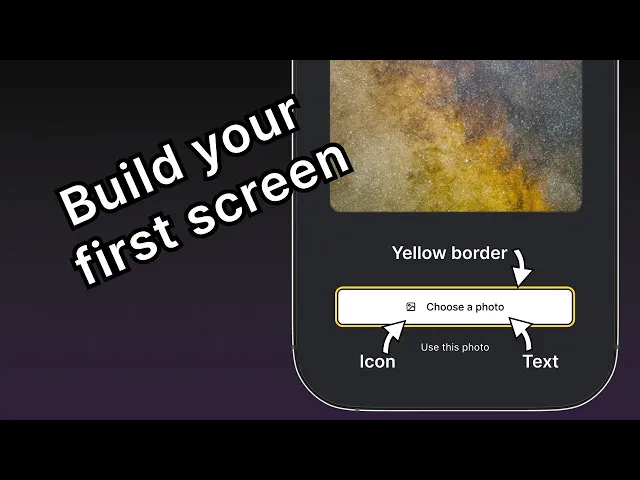
使用 Pressable、Expo Image 和其他核心组件构建 StickerSmash 应用的第一个屏幕,创建一个图片选择器布局。
1
2
显示图片
我们将使用 expo-image 库在应用中显示图片。它提供了一个跨平台的 <Image> 组件来加载和渲染图片。它已经包含在我们正在使用的默认项目模板中。
Image 组件会将图片的 source 作为其值。source 可以是 静态资源 或 URL。例如,来自 assets/images 目录的 source 是静态的。它也可以通过 Network 以 uri 属性的形式提供。
要在 app/(tabs)/index.tsx 文件中使用 Image 组件:
- 从
expo-image库中导入Image。 - 创建一个
PlaceholderImage变量,将 assets/images/background-image.png 文件作为Image组件的source属性使用。
import { View, StyleSheet } from 'react-native'; import { Image } from 'expo-image'; const PlaceholderImage = require('@/assets/images/background-image.png'); export default function Index() { return ( <View style={styles.container}> <View style={styles.imageContainer}> <Image source={PlaceholderImage} style={styles.image} /> </View> </View> ); } const styles = StyleSheet.create({ container: { flex: 1, backgroundColor: '#25292e', alignItems: 'center', }, imageContainer: { flex: 1, }, image: { width: 320, height: 440, borderRadius: 18, }, });
3
将组件拆分到不同文件中
随着我们向这个屏幕添加更多组件,让我们把代码拆分到多个文件中。在整个教程中,我们将使用 components 目录来创建自定义组件。
- 创建一个顶层 components 目录,并在其中创建 ImageViewer.tsx 文件。
- 将显示图片的代码以及
image样式移到这个文件中。
import { ImageSourcePropType, StyleSheet } from 'react-native'; import { Image } from 'expo-image'; type Props = { imgSource: ImageSourcePropType; }; export default function ImageViewer({ imgSource }: Props) { return <Image source={imgSource} style={styles.image} />; } const styles = StyleSheet.create({ image: { width: 320, height: 440, borderRadius: 18, }, });
信息 由于 ImageViewer 是一个自定义组件,我们将它放在单独的目录中,而不是 app 目录。app 目录中的每个文件要么是布局文件,要么是路由文件。更多信息请参见 非导航组件应放在 app 目录之外。
导入 ImageViewer 并在 app/(tabs)/index.tsx 中使用它:
import { StyleSheet, View } from 'react-native'; import ImageViewer from '@/components/ImageViewer'; const PlaceholderImage = require('@/assets/images/background-image.png'); export default function Index() { return ( <View style={styles.container}> <View style={styles.imageContainer}> <ImageViewer imgSource={PlaceholderImage} /> </View> </View> ); } const styles = StyleSheet.create({ container: { flex: 1, backgroundColor: '#25292e', alignItems: 'center', }, imageContainer: { flex: 1, }, });
导入语句中的 @ 是什么?
@ 符号是一个自定义的 路径别名,用于导入自定义组件和其他模块,而不是使用相对路径。Expo CLI 会在 tsconfig.json 中自动为其配置。
4
使用 Pressable 创建按钮
React Native 包含一些用于处理触摸事件的不同组件,但由于 <Pressable> 的灵活性,它是推荐使用的。它可以检测单次点击、长按,在按钮按下和释放时触发不同的事件,等等。
在设计中,我们需要创建两个按钮。每个按钮都有不同的样式和标签。让我们先创建一个可复用的按钮组件。在 components 目录中创建一个 Button.tsx 文件,并使用以下代码:
import { StyleSheet, View, Pressable, Text } from 'react-native'; type Props = { label: string; }; export default function Button({ label }: Props) { return ( <View style={styles.buttonContainer}> <Pressable style={styles.button} onPress={() => alert('You pressed a button.')}> <Text style={styles.buttonLabel}>{label}</Text> </Pressable> </View> ); } const styles = StyleSheet.create({ buttonContainer: { width: 320, height: 68, marginHorizontal: 20, alignItems: 'center', justifyContent: 'center', padding: 3, }, button: { borderRadius: 10, width: '100%', height: '100%', alignItems: 'center', justifyContent: 'center', flexDirection: 'row', }, buttonLabel: { color: '#fff', fontSize: 16, }, });
当用户点击屏幕上的任意按钮时,应用会显示一个提醒。这是因为 <Pressable> 在其 onPress 属性中调用了 alert()。让我们将这个组件导入到 app/(tabs)/index.tsx 文件中,并为包裹这些按钮的 <View> 添加样式:
import { View, StyleSheet } from 'react-native'; import Button from '@/components/Button'; import ImageViewer from '@/components/ImageViewer'; const PlaceholderImage = require("@/assets/images/background-image.png"); export default function Index() { return ( <View style={styles.container}> <View style={styles.imageContainer}> <ImageViewer imgSource={PlaceholderImage} /> </View> <View style={styles.footerContainer}> <Button label="Choose a photo" /> <Button label="Use this photo" /> </View> </View> ); } const styles = StyleSheet.create({ container: { flex: 1, backgroundColor: '#25292e', alignItems: 'center', }, imageContainer: { flex: 1, paddingTop: 28, }, footerContainer: { flex: 1 / 3, alignItems: 'center', }, });
让我们在 Android、iOS 和 Web 上看看我们的应用:
带有“Use this photo”标签的第二个按钮与设计中的实际按钮相似。不过,第一个按钮还需要更多样式才能匹配设计。
5
增强可复用按钮组件
“Choose a photo” 按钮所需的样式与“Use this photo” 按钮不同,因此我们将添加一个新的 button theme 属性,使我们能够应用 primary 主题。这个按钮在标签前面还有一个图标。我们将使用 @expo/vector-icons 库中的图标。
要在按钮上加载并显示图标,让我们使用库中的 FontAwesome。修改 components/Button.tsx,添加以下代码片段:
import { StyleSheet, View, Pressable, Text } from 'react-native'; import FontAwesome from '@expo/vector-icons/FontAwesome'; type Props = { label: string; theme?: 'primary'; }; export default function Button({ label, theme }: Props) { if (theme === 'primary') { return ( <View style={[ styles.buttonContainer, { borderWidth: 4, borderColor: '#ffd33d', borderRadius: 18 }, ]}> <Pressable style={[styles.button, { backgroundColor: '#fff' }]} onPress={() => alert('You pressed a button.')}> <FontAwesome name="picture-o" size={18} color="#25292e" style={styles.buttonIcon} /> <Text style={[styles.buttonLabel, { color: '#25292e' }]}>{label}</Text> </Pressable> </View> ); } return ( <View style={styles.buttonContainer}> <Pressable style={styles.button} onPress={() => alert('You pressed a button.')}> <Text style={styles.buttonLabel}>{label}</Text> </Pressable> </View> ); } const styles = StyleSheet.create({ buttonContainer: { width: 320, height: 68, marginHorizontal: 20, alignItems: 'center', justifyContent: 'center', padding: 3, }, button: { borderRadius: 10, width: '100%', height: '100%', alignItems: 'center', justifyContent: 'center', flexDirection: 'row', }, buttonIcon: { paddingRight: 8, }, buttonLabel: { color: '#fff', fontSize: 16, }, });
让我们了解一下上面的代码做了什么:
- primary 主题按钮使用 内联样式,它会覆盖在
StyleSheet.create()中定义的样式,因为对象直接传入了style属性。 - primary 主题中的
<Pressable>组件使用backgroundColor属性,值为#fff,将按钮背景设置为白色。如果我们把这个属性加到styles.button中,那么这个背景色值将同时应用于 primary 主题和未设置样式的按钮。 - 内联样式使用 JavaScript,并会覆盖特定值的默认样式。
现在,修改 app/(tabs)/index.tsx 文件,为第一个按钮使用 theme="primary" 属性。
import { View, StyleSheet } from 'react-native'; import Button from '@/components/Button'; import ImageViewer from '@/components/ImageViewer'; const PlaceholderImage = require('@/assets/images/background-image.png'); export default function Index() { return ( <View style={styles.container}> <View style={styles.imageContainer}> <ImageViewer imgSource={PlaceholderImage} /> </View> <View style={styles.footerContainer}> <Button theme="primary" label="Choose a photo" /> <Button label="Use this photo" /> </View> </View> ); } const styles = StyleSheet.create({ container: { flex: 1, backgroundColor: '#25292e', alignItems: 'center', }, imageContainer: { flex: 1, }, footerContainer: { flex: 1 / 3, alignItems: 'center', }, });
让我们在 Android、iOS 和 Web 上看看我们的应用:
摘要
Chapter 3: Build a screen
我们已经成功实现了初始设计,开始构建应用的第一个屏幕。
在下一章中,我们将添加从设备媒体库中选择图片的功能。