This documentation is available as Markdown for AI agents and LLMs. See the full Markdown index or append .md to any documentation URL.
Expo 小组件
使用 Expo UI components 构建 iOS 主屏幕小组件和 Live Activities 的库。
重要 此库在 Expo Go 应用中不可用 — 请使用开发构建进行试用。
expo-widgets 可使用 Expo UI 组件创建 iOS 主屏幕小组件和实时活动,无需编写原生代码。它提供了一个简单的 API,用于创建和更新小组件的时间线,以及启动和管理实时活动。你可以使用 expo/ui 组件和修饰符构建布局。
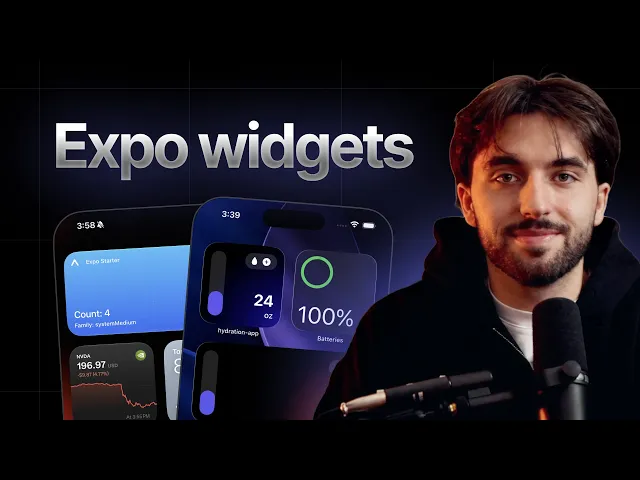
使用 expo-widgets 和 TypeScript 构建原生 iOS 主屏幕小组件。
已知限制
- 频繁更新实时活动。 如需提高频繁推送更新的额度,请在 Info.plist 中将
NSSupportsLiveActivitiesFrequentUpdates设为true。系统仍可能限制更新频率,用户也可以在“设置”中关闭频繁更新。 - 小组件运行时。
'widget'标记组件中的代码会在隔离的运行时中执行,且只能使用@expo/ui/swift-ui组件,不能使用 React hooks、应用状态或异步操作。请参阅'widget'指令。
安装
If you are installing this in an existing React Native app, make sure to install expo in your project.
在应用配置中配置
如果项目使用配置插件(Continuous Native Generation (CNG)),你可以使用内置的配置插件来配置 expo-widgets。该插件可配置各种无法在运行时设置、且需要重新构建应用二进制文件才能生效的属性。
Example app.json with config plugin
Configurable properties
信息 顶层的
supportedFamilies和contentMarginsDisabled选项是ios.supportedFamilies和ios.contentMarginsDisabled的已弃用别名。请优先使用上面所示的嵌套ios形式。
包含所有选项的完整示例
使用方法
'widget' 指令
传递给 createWidget 和 createLiveActivity 的组件必须以 'widget' 指令开头。该指令会告诉打包器将组件编译成单独的 JavaScript 包,在小组件扩展内部的隔离运行时中运行,而不是在应用的 React Native 运行时中运行。
由于这种隔离,'widget' 标记组件中的代码受到以下限制:
- 只能渲染
@expo/ui/swift-ui组件和修饰符。标准 React Native 组件(例如来自react-native的View和Text)不可用。 - 不能使用 React hooks(
useState、useEffect等)、组件状态或上下文。函数必须是纯函数,并同步返回布局。 - 不能执行异步操作、导入其他模块,或访问应用的运行时和内存状态。
- 不能引用组件函数外部声明的任何内容,包括同一文件中的顶层普通
const。打包器只会序列化函数体,因此模块作用域的值在运行时不可用。请在小组件函数内部声明所有常量和辅助函数,或通过 props 传入。
小组件所需的所有数据都必须通过其 props(使用 updateSnapshot、updateTimeline 或实时活动的 start 和 update 设置)以及 environment 参数传入。若要使用图片,请从应用将图片写入 widgetsDirectory,并通过路径引用。
import { Text } from '@expo/ui/swift-ui';
import { createWidget, type WidgetEnvironment } from 'expo-widgets';

// 在模块作用域声明 — 不会包含在小组件包中。
const CITY_NAMES: Record<string, string> = { sf: 'San Francisco' };

const CityWidget = (props: object, environment: WidgetEnvironment<{ city: string }>) => {
  'widget';
  // 运行时抛出异常:Can't find variable: CITY_NAMES
  return <Text>{CITY_NAMES[environment.configuration.city]}</Text>;
};

export default createWidget('CityWidget', CityWidget);
将 CITY_NAMES 移至 CityWidget 内部(或通过 props 传入解析后的值)即可修复此问题。
小组件
前提条件:创建小组件
首先,使用 createWidget 函数创建小组件,并传入带有 'widget' 指令标记的小组件。该组件接收作为第一个参数传入的小组件 props,以及作为第二个参数传入的 WidgetEnvironment 对象。
import { Text, VStack } from '@expo/ui/swift-ui';
import { font, foregroundStyle } from '@expo/ui/swift-ui/modifiers';
import { createWidget, type WidgetEnvironment } from 'expo-widgets';

type MyWidgetProps = {
  count: number;
};

const MyWidget = (props: MyWidgetProps, environment: WidgetEnvironment) => {
  'widget';
  return (
    <VStack>
      <Text modifiers={[font({ weight: 'bold', size: 16 }), foregroundStyle('#000000')]}>
        Count: {props.count}
      </Text>
      <Text>Family: {environment.widgetFamily}</Text>
    </VStack>
  );
};

export default createWidget('MyWidget', MyWidget, { count: 0 });
小组件名称('MyWidget')必须与应用配置中小组件配置的 name 字段一致。
可选的第三个参数提供初始 props,在小组件时间线更新之前使用。
基础小组件
更新小组件的一种有效方式是使用 updateSnapshot 方法。它会创建仅包含一个条目的小组件时间线,并立即显示该条目。
以下示例接续自创建小组件。
import MyWidget from './MyWidget';

// 更新小组件
MyWidget.updateSnapshot({ count: 5 });
时间线小组件
使用 updateTimeline 方法可安排在指定时间更新小组件。系统会根据时间线自动更新小组件。
以下示例接续自创建小组件。
import MyWidget from './MyWidget';

MyWidget.updateTimeline([
  { date: new Date(), props: { count: 1 } },
  { date: new Date(Date.now() + 3600000), props: { count: 2 } }, // 1 hour from now
  { date: new Date(Date.now() + 7200000), props: { count: 3 } }, // 2 hours from now
  { date: new Date(Date.now() + 10800000), props: { count: 4 } }, // 3 hours from now
]);
读取当前时间线
使用 getTimeline 读取当前为小组件安排的条目,包括过去和未来的条目。
import MyWidget from './MyWidget';

const entries = await MyWidget.getTimeline();
// [{ date: Date, props: { count: number } }, ...]
重新加载小组件
使用 reload 强制系统立即刷新小组件的内容和时间线,例如在底层数据发生变化后。
import MyWidget from './MyWidget';

MyWidget.reload();
响应式小组件
使用 environment 参数,根据当前小组件尺寸和渲染上下文调整布局。
import { HStack, Text, VStack } from '@expo/ui/swift-ui';
import { createWidget, type WidgetEnvironment } from 'expo-widgets';

type WeatherWidgetProps = {
  temperature: number;
  condition: string;
};

const WeatherWidget = (props: WeatherWidgetProps, environment: WidgetEnvironment) => {
  'widget';
  // 根据尺寸渲染不同布局
  if (environment.widgetFamily === 'systemSmall') {
    return (
      <VStack>
        <Text>{props.temperature}°</Text>
      </VStack>
    );
  }

  if (environment.widgetFamily === 'systemMedium') {
    return (
      <HStack>
        <Text>{props.temperature}°</Text>
        <Text>{props.condition}</Text>
      </HStack>
    );
  }

  // systemLarge 及其他尺寸
  return (
    <VStack>
      <Text>Temperature: {props.temperature}°</Text>
      <Text>Condition: {props.condition}</Text>
      <Text>Updated: {environment.date.toLocaleTimeString()}</Text>
    </VStack>
  );
};

const Widget = createWidget('WeatherWidget', WeatherWidget);
export default Widget;

Widget.updateSnapshot({
  temperature: 72,
  condition: 'Sunny',
});
适应渲染环境
除了 widgetFamily 和 date,environment 对象还描述了系统如何以及在哪里绘制小组件,因此你可以据此调整布局:
colorScheme:'light'或'dark'。widgetRenderingMode:主屏幕小组件使用'fullColor';锁定屏幕小组件使用'vibrant'(系统会将其降低饱和度,呈现自适应单色外观);iOS 18 及更高版本上的色调小组件使用'accented'。你可以据此选择在每种模式下都清晰易读的颜色。isLuminanceReduced:当显示屏需要降低亮度时为true(例如“始终显示”模式)。请降低内容的整体亮度,例如使用描边形状而不是填充形状。widgetContentMargins:未禁用内容边距时系统建议的边距(top、bottom、leading、trailing)。showsWidgetLabel:对于配件小组件,指示是否可以显示配件标签。
交互式小组件
小组件可以包含 Button 等交互控件。按钮的 onPress 回调返回的值会成为小组件的新 props。运行时会持久化该值,并在设备上重新加载小组件,无需应用进程运行。这是让小组件响应点击并自行更新的主要方式。交互式小组件要求 iOS 17 或更高版本。
若还要让正在运行的应用与小组件交互保持同步,请为控件设置 target 标识符(如上所示),并使用 addUserInteractionListener 监听点击事件。监听器会接收小组件的 name 作为 source,以及控件的 target。与 onPress 不同,它仅在应用进程存活时触发,因此应将其用于把交互同步到应用状态,而不是用作小组件的更新机制。
使用 widgetsDirectory 共享图片
小组件无法访问应用沙盒中的文件,因此若要在小组件中显示图片,必须将图片放入共享的应用组容器中。widgetsDirectory 是一个 file:// URL 字符串,指向应用和小组件都可以读取的目录。请从应用将图片写入该目录,然后在小组件中通过路径引用。
import { widgetsDirectory } from 'expo-widgets';

// `widgetsDirectory` 是指向与小组件共享目录的 file:// URL。
console.log(widgetsDirectory);
信息 仅当未配置应用组时,
widgetsDirectory才为null。groupIdentifier配置插件选项会自动设置应用组(若未设置则使用group.<bundle identifier>),因此在正常使用时该目录可用。
可配置小组件
为小组件添加 ios.configuration 后,用户可以长按小组件并编辑其参数。用户选择的值会通过 environment.configuration 传递给小组件。将第二个类型参数传递给 createWidget(以及 WidgetEnvironment)即可为配置指定类型。可配置小组件要求 iOS 17 或更高版本。
import { Text, VStack } from '@expo/ui/swift-ui';
import { createWidget, type WidgetEnvironment } from 'expo-widgets';

type WeatherProps = {
  temperature: number;
};

type WeatherConfiguration = {
  city: string;
};

const WeatherWidget = (
  props: WeatherProps,
  environment: WidgetEnvironment<WeatherConfiguration>
) => {
  'widget';
  return (
    <VStack>
      <Text>{environment.configuration.city}</Text>
      <Text>{props.temperature}°</Text>
    </VStack>
  );
};

export default createWidget<WeatherProps, WeatherConfiguration>('WeatherWidget', WeatherWidget);
动态枚举选项
当选项列表只有在运行时才确定时(例如登录后加载的工作区),请在应用配置中的枚举参数上设置 dynamic: true。在应用提供运行时选项之前,应用配置中的 values 数组会作为备用列表,如下所示:
WeatherWidget.setConfigurationParameterEnum('city', [
  { name: 'Current City', value: 'current' },
  { name: 'San Francisco', value: 'sf' },
  { name: 'New York', value: 'nyc' },
]);
实时活动
实时活动会在锁定屏幕和受支持设备上的灵动岛中显示实时信息。
前提条件:创建实时活动
必须先使用 createLiveActivity 创建一次实时活动布局,并使用 'widget' 指令标记。该组件接收作为第一个参数传入的 props,以及作为第二个参数传入的 LiveActivityEnvironment 对象。它会返回一个描述各展示形式布局的对象:锁定屏幕上的 banner、灵动岛的紧凑和最小状态,以及灵动岛的展开区域。
重要
createLiveActivity会完全在运行时注册实时活动,并由库内置的实时活动目标进行渲染。请勿在应用配置中为其添加widgets[]条目。widgets[]数组仅用于主屏幕和锁定屏幕小组件;不含supportedFamilies的条目会生成无效的小组件目标,导致构建失败。传递给createLiveActivity的name只需与此createLiveActivity调用匹配,无需对应应用配置中的小组件。
import { Image, Text, VStack } from '@expo/ui/swift-ui';
import { font, foregroundStyle, padding } from '@expo/ui/swift-ui/modifiers';
import { createLiveActivity, type LiveActivityEnvironment } from 'expo-widgets';

type DeliveryActivityProps = {
  etaMinutes: number;
  status: string;
};

const DeliveryActivity = (props: DeliveryActivityProps, environment: LiveActivityEnvironment) => {
  'widget';
  const accentColor = environment.isLuminanceReduced ? '#FFFFFF' : '#007AFF';

  return {
    banner: (
      <VStack modifiers={[padding({ all: 12 })]}>
        <Text modifiers={[font({ weight: 'bold' }), foregroundStyle(accentColor)]}>
          {props.status}
        </Text>
        <Text>Estimated arrival: {props.etaMinutes} minutes</Text>
      </VStack>
    ),
    compactLeading: <Image systemName="box.truck.fill" color={accentColor} />,
    compactTrailing: <Text>{props.etaMinutes} min</Text>,
    minimal: <Image systemName="box.truck.fill" color={accentColor} />,
    expandedLeading: (
      <VStack modifiers={[padding({ all: 12 })]}>
        <Image systemName="box.truck.fill" color={accentColor} />
        <Text modifiers={[font({ size: 12 })]}>Delivering</Text>
      </VStack>
    ),
    expandedTrailing: (
      <VStack modifiers={[padding({ all: 12 })]}>
        <Text modifiers={[font({ weight: 'bold', size: 20 })]}>{props.etaMinutes}</Text>
        <Text modifiers={[font({ size: 12 })]}>minutes</Text>
      </VStack>
    ),
    expandedBottom: (
      <VStack modifiers={[padding({ all: 12 })]}>
        <Text>Driver: John Smith</Text>
        <Text>Order #12345</Text>
      </VStack>
    ),
  };
};

export default createLiveActivity('DeliveryActivity', DeliveryActivity);
布局对象支持以下区域:
banner:锁定屏幕上的主要展示。bannerSmall:紧凑型锁定屏幕展示,用于 CarPlay 和 watchOS。省略时回退到banner。compactLeading、compactTrailing、minimal:灵动岛的紧凑和最小状态。expandedLeading、expandedTrailing、expandedCenter、expandedBottom:灵动岛展开后的区域。
environment 对象还会公开 isLuminanceReduced、isActivityFullscreen、isActivityUpdateReduced 和 activityFamily,以便你根据当前展示调整布局。
启动实时活动
以下示例接续自创建实时活动。
import { Button, View } from 'react-native';
import DeliveryActivity from './DeliveryActivity';

function App() {
  const startDeliveryTracking = () => {
    // Start the Live Activity
    const instance = DeliveryActivity.start(
      {
        etaMinutes: 15,
        status: 'Your delivery is on the way',
      },
      'myapp://deliveries/12345'
    );
    // Store instance
  };

  return (
    <View style={{ flex: 1, justifyContent: 'center', alignItems: 'center' }}>
      <Button title="Start delivery tracking" onPress={startDeliveryTracking} />
    </View>
  );
}
export default App;
可选的第二个参数是与实时活动关联的 URL。当用户轻点活动时,系统会通过该 URL 打开你的应用,因此你可以使用链接跳转到相关页面(例如使用 Expo Router 的深度链接)。
更新实时活动
以下示例接续自启动实时活动。
import { LiveActivity } from 'expo-widgets';

function updateDelivery(instance: LiveActivity<DeliveryActivityProps>) {
  instance.update({
    etaMinutes: 2,
    status: 'Delivery arriving soon!',
  });
}
恢复活跃的实时活动
实时活动可以在启动它的应用进程结束后继续存在。使用工厂上的 getInstances 检索当前活跃的该类型活动,例如在应用重新启动后更新或结束这些活动。
import DeliveryActivity from './DeliveryActivity';

const activeInstances = DeliveryActivity.getInstances();

for (const instance of activeInstances) {
  await instance.update({ etaMinutes: 5, status: 'Almost there' });
}
结束实时活动
使用 end 结束实时活动。你可以选择关闭策略,可选地提供最终内容状态,并传入 contentDate,以便系统忽略过期更新。
import { after, type LiveActivity } from 'expo-widgets';

async function completeDelivery(instance: LiveActivity<DeliveryActivityProps>) {
  await instance.end(
    after(new Date(Date.now() + 15 * 60 * 1000)),
    {
      etaMinutes: 0,
      status: 'Delivered',
    },
    new Date()
  );
}
你也可以传入 'default' 或 'immediate',代替 after(date) 作为关闭策略。
通过推送通知远程更新
当 enablePushNotifications 为 true 时,你可以通过 Apple 推送通知服务(APNs)从服务器远程更新实时活动。
- 使用
addPushToStartTokenListener接收应用级的推送启动令牌,该令牌可让服务器远程启动实时活动(需要 iOS 17.2 或更高版本)。 - 使用
instance.getPushToken()或instance.addPushTokenListener()获取特定运行中实时活动的令牌,该令牌可让服务器向该活动发送更新。
import { addPushToStartTokenListener } from 'expo-widgets';
import DeliveryActivity from './DeliveryActivity';

const pushToStartSubscription = addPushToStartTokenListener(event => {
  console.log('Push-to-start token:', event.activityPushToStartToken);
});

async function startDeliveryTracking() {
  const instance = DeliveryActivity.start({
    etaMinutes: 15,
    status: 'Your delivery is on the way',
  });

  const pushToken = await instance.getPushToken();
  console.log('Per-activity token:', pushToken);

  const subscription = instance.addPushTokenListener(event => {
    console.log('Updated push token:', event.activityId, event.pushToken);
  });

  // Later, when you no longer need updates:
  subscription.remove();
}

// Later, when you no longer need updates:
pushToStartSubscription.remove();
将令牌发送到服务器,并用它推送更新。通知必须使用 liveactivity 推送类型(apns-push-type 标头),且 apns-topic 为 <your bundle identifier>.push-type.liveactivity。其 aps 负载包含一个 event(start、update 或 end)、一个 timestamp,以及与活动 props 匹配的 content-state。content-state 必须与 expo-widgets 使用的内部内容状态匹配:将 name 设为传给 createLiveActivity 的名称,并将 props 设为该活动 props 的 JSON 字符串。立即更新使用 apns-priority: 10,较低优先级的更新使用 apns-priority: 5。timestamp、dismissal-date 和其他 APNs 日期字段均为以秒为单位的 Unix 时间戳。
要远程启动实时活动,请向推送启动令牌发送 start 事件:
{
  "aps": {
    "timestamp": 1778832000,
    "event": "start",
    "attributes-type": "LiveActivityAttributes",
    "attributes": {},
    "content-state": {
      "name": "DeliveryActivity",
      "props": "{\"etaMinutes\":15,\"status\":\"Your delivery is on the way\"}"
    },
    "alert": {
      "title": "Delivery started",
      "body": "Your delivery is on the way"
    }
  }
}
远程启动需要 iOS 17.2 或更高版本。在 iOS 18 或更高版本上,如果希望 APNs 为后续更新提供新的活动级令牌,请在 aps 负载中包含 input-push-token: 1。
要远程更新实时活动,请向该活动的活动级令牌发送 update 事件:
{
  "aps": {
    "timestamp": 1778832300,
    "event": "update",
    "content-state": {
      "name": "DeliveryActivity",
      "props": "{\"etaMinutes\":2,\"status\":\"Delivery arriving soon!\"}"
    }
  }
}
要远程结束实时活动,请发送带有最终内容状态的 end 事件:
{
  "aps": {
    "timestamp": 1778832600,
    "event": "end",
    "content-state": {
      "name": "DeliveryActivity",
      "props": "{\"etaMinutes\":0,\"status\":\"Delivered\"}"
    },
    "dismissal-date": 1778833200
  }
}
有关确切的负载格式和标头,请参阅 Apple 的使用 ActivityKit 推送通知启动和更新实时活动。
API
import { createWidget, createLiveActivity } from 'expo-widgets';
Constants
Type: string
A directory that can be used to store shared images for widgets. The contents of this directory are accessible by both the main app and widgets.
Classes
Represents a Live Activity instance. Provides methods to update its content and end it.
LiveActivity Methods
Adds a listener for push token update events on this Live Activity instance. The token can be used to send content updates to this specific activity via APNs.
EventSubscriptionAn event subscription that can be used to remove the listener.
Returns the push token for this Live Activity, used to send push notification updates via APNs.
Returns null if push notifications are not enabled or the token is not yet available.
Promise<string | null>Updates the Live Activity's content. The UI reflects the new properties immediately.
Promise<void>Manages Live Activity instances of a specific type. Use it to start new activities and retrieve currently active ones.
LiveActivityFactory Methods
Returns all currently active instances of this Live Activity type.
LiveActivity[]Starts a new Live Activity with the given properties.
LiveActivity<T>The new Live Activity instance.
Represents a widget instance. Provides methods to manage the widget's timeline.
Widget Methods
Returns the current timeline entries for the widget, including past and future entries.
Promise<WidgetTimelineEntry[]>Replaces the runtime options for a dynamic enum configuration parameter. The app config values remain the fallback when no runtime options are set.
voidSets the widget's content to the given props immediately, without scheduling a timeline.
voidMethods
Creates a Live Activity Factory for managing Live Activities of a specific type.
LiveActivityFactory<T>Event subscriptions
Adds a listener for push-to-start token events. This token can be used to start live activities remotely via APNs.
EventSubscriptionAn event subscription that can be used to remove the listener.
Adds a listener for widget interaction events (for example, button taps).
EventSubscriptionAn event subscription that can be used to remove the listener.
Types
Literal type: string
The level of detail the view is recommended to have. The system can update the levelOfDetail value based on user proximity or other system specific factors and allow content customization adapting to show different levels of details.
simplified— The system recommends showing a simplified view with less details.default— The system has no specific recommendation for the level of detail.
Acceptable values are: 'simplified' | 'default'
A function that returns the layout for a Live Activity.
Literal type: union
Dismissal policy for ending a live activity.
'default'- The system’s default dismissal policy for the Live Activity.'immediate'- The system immediately removes the Live Activity that ended.after(date)- The system removes the Live Activity that ended at the specified time within a four-hour window.
Acceptable values are: 'default' | 'immediate' | ReturnType<after>
Literal type: string
The widget family (size).
systemSmall- Small square widget (2x2 grid).systemMedium- Medium widget (4x2 grid).systemLarge- Large widget (4x4 grid).systemExtraLarge- Extra large widget (iPad only, 6x4 grid).accessoryCircular- Circular accessory widget for the Lock Screen.accessoryRectangular- Rectangular accessory widget for the Lock Screen.accessoryInline- Inline accessory widget for the Lock Screen.
Acceptable values are: 'systemSmall' | 'systemMedium' | 'systemLarge' | 'systemExtraLarge' | 'accessoryCircular' | 'accessoryRectangular' | 'accessoryInline'
Literal type: string
The rendering mode of the widget as provided by WidgetKit.
fullColor— Home screen widgets (default).accented— Tinted widgets (iOS 18+) and watchOS.vibrant— Lock screen widgets.
Acceptable values are: 'fullColor' | 'accented' | 'vibrant'