This documentation is available as Markdown for AI agents and LLMs. See the full Markdown index or append .md to any documentation URL.
开始开发
编辑页面
对 Expo 项目进行第一次修改,并在你的设备上实时查看效果。
2
在你的设备上打开应用
运行上述命令后,你会在终端中看到一个二维码。扫描此二维码即可在你的设备上打开应用。
如果你使用的是 Android 模拟器或 iOS 模拟器,可以分别按 A 或 I 来打开应用。
在实体 iOS 设备上使用 Expo Go? 只有当 Expo CLI 和 Expo Go 登录的是同一个 Expo 账户时,Expo Go 才会打开你的项目。在电脑上运行
npx expo login,然后使用同一个账户登录 Expo Go。请参阅设置开发环境。
遇到问题了?
请确保你的电脑和设备连接到同一个 Wi‑Fi 网络。
如果你在实体 iOS 设备上看到有关账户的错误提示,提示信息会告诉你需要解决什么问题。要登录 Expo CLI,请在电脑上运行 npx expo login。要登录 Expo Go,请点按右上角的账户图标。两者使用同一个账户,然后按重试。有关所有提示信息,请参阅需要登录 Expo Go。
如果还是无法正常使用,可能是路由器配置导致的——这在公共网络中很常见。你可以在启动开发服务器时选择隧道连接类型,然后重新扫描二维码,以此解决问题。
使用隧道连接类型会使应用重新加载的速度明显慢于局域网或本地,因此在可能的情况下最好避免使用隧道。如果需要通过网络中的另一台设备访问你的机器,你可能需要安装并使用模拟器或仿真器来加快开发速度。
3
进行你的第一次修改
在代码编辑器中打开 src/app/index.tsx 文件并进行一次修改。
设备上没有显示更改?
Expo Go 默认配置为在文件发生更改时自动重新加载应用,但我们还是来确认一下启用它的步骤,以防万一某些地方没有正常工作。
-
确保你已在 Expo CLI 中启用开发模式。
-
关闭 Expo 应用并重新打开它。
-
应用再次打开后,摇晃你的设备以显示开发者菜单。按 Cmd ⌘ + D。
-
如果你看到已启用快速刷新,请将其切换。如果你看到禁用快速刷新,请关闭开发者菜单。现在再试着做一次更改。
文件结构
下面,你可以熟悉默认项目的文件结构:
Files
app
Contains the app's navigation, which is file-based. The file structure of the src/app directory determines the app's navigation.
The app has two routes defined by two files: src/app/index.tsx and src/app/explore.tsx. The layout file in src/app/_layout.tsx sets up the tab navigator using the platform-specific AppTabs component.
功能
默认项目模板具有以下功能:
Default project
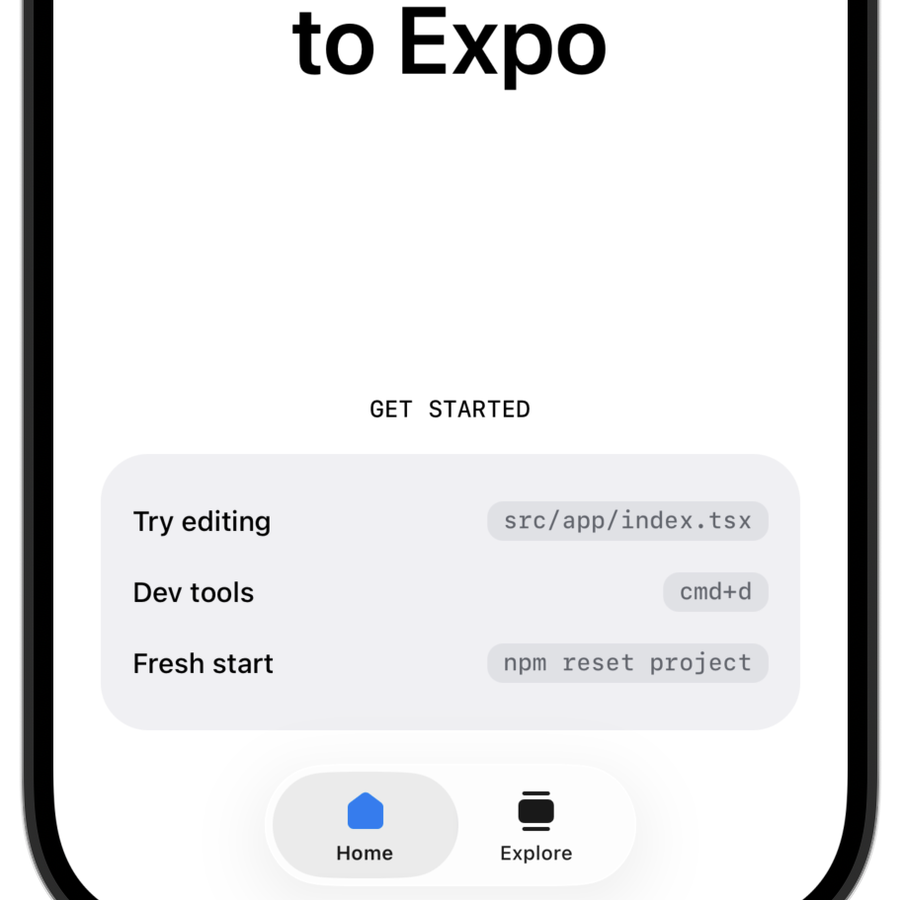
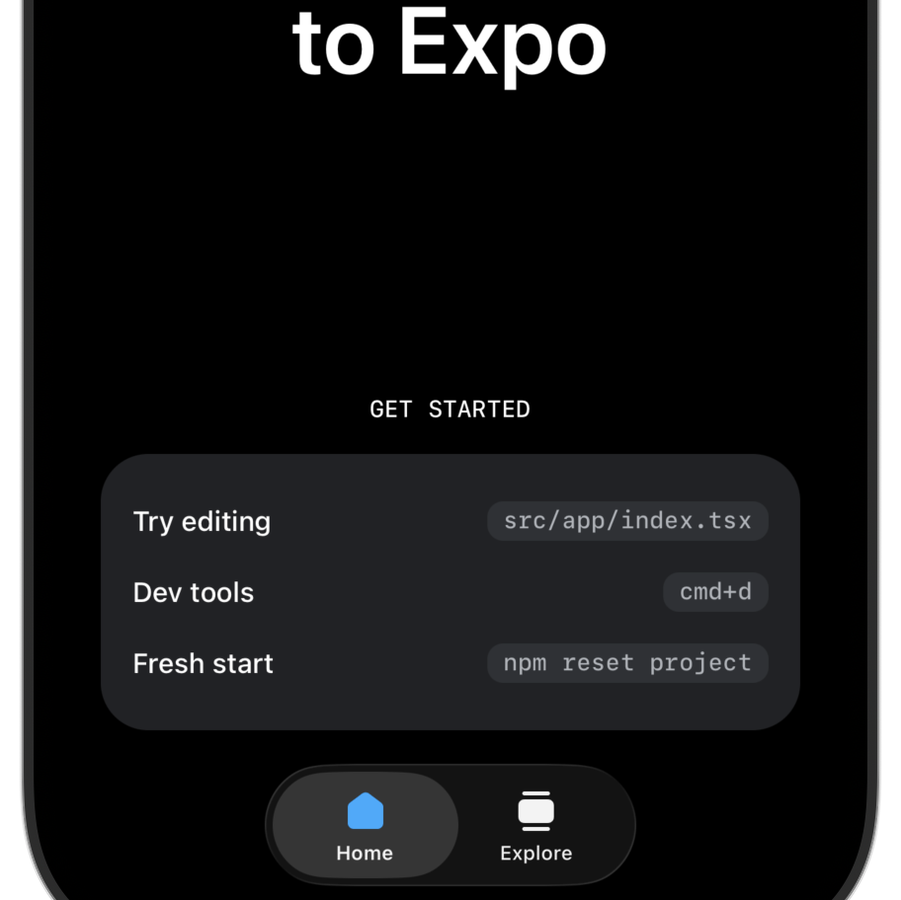
File-based routing
The app has two screens: src/app/index.tsx and src/app/explore.tsx. The layout file in src/app/_layout.tsx sets up navigation using a platform-specific AppTabs component that uses native tabs on Android and iOS, and Expo Router UI tabs on web.
Learn more